How to set up Decisioner, approve recovery messages, set your limits and read the results. Screenshots show example data.
Getting started
Decisioner is an app inside your Shopify admin. After you install it from the Shopify App Store, it opens on Home and a setup guide takes you through nine short steps.
Before you start
A Klaviyo account, or Shopify Flow on your Shopify plan.
For Klaviyo: a private API key with these scopes: Events (write), Profiles (read), Subscriptions (read), Templates (read).
Customers who are subscribed to email marketing. Decisioner never messages anyone else.
Install
Open Decisioner in the Shopify App Store and select Install.
Review the permissions and select Install again.
Decisioner opens on Home. Select Continue setup.
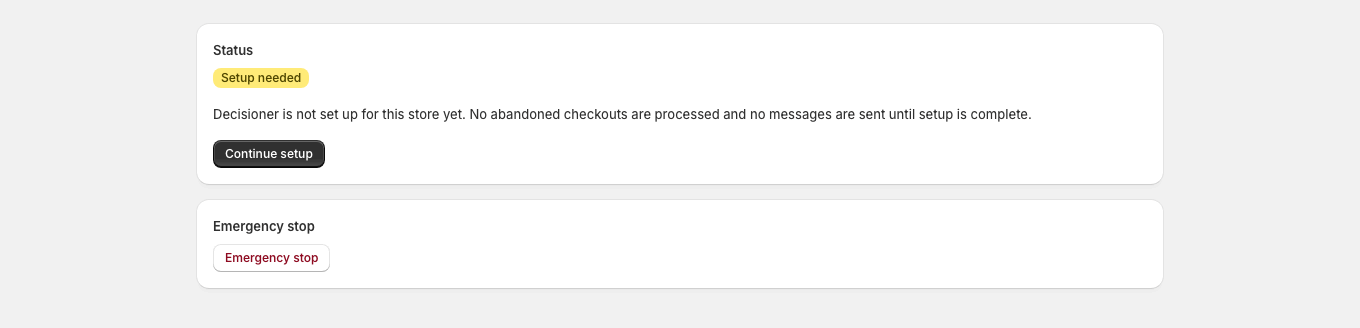
Home: setup needed. A new store sees that Decisioner is not set up yet, with a Continue setup button and the Emergency stop control.
Setup guide
The setup guide lists every step on the left and marks each one when it is done. You can leave and come back; your progress is saved.
1. Learning from your store
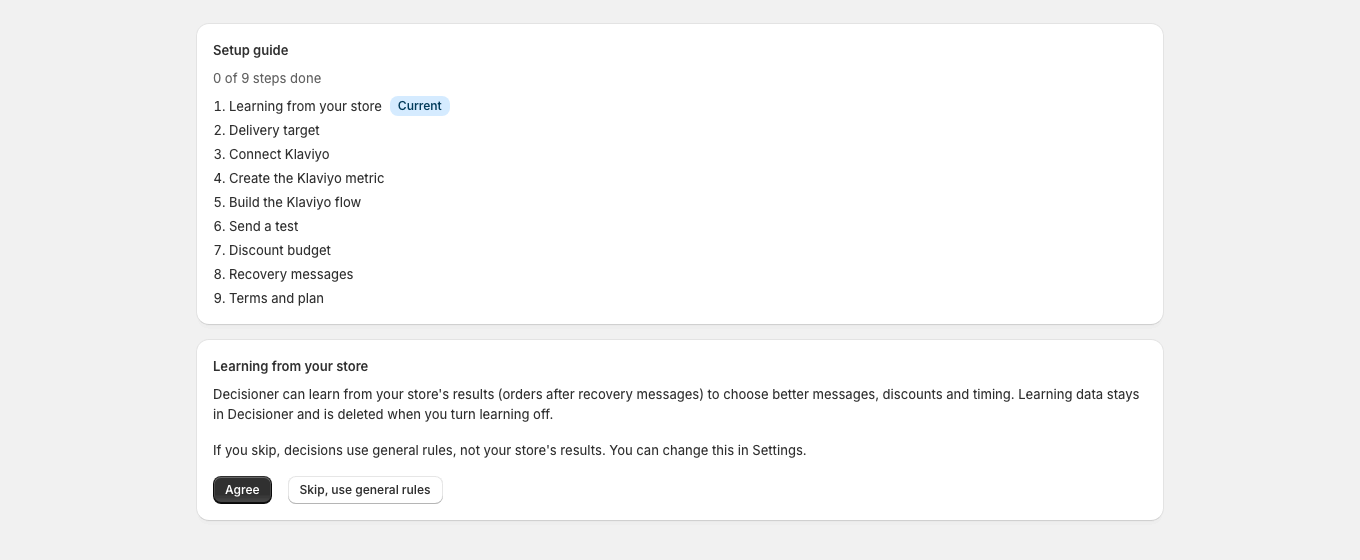
Choose whether Decisioner may learn from the results in your store. With learning on, it improves its timing, message and discount choices from your own orders. With learning off, it uses general rules. You can change this later in Settings.
Setup: learning consent. The setup guide starts by asking whether Decisioner may learn from the store's results, with Agree and Skip options.
2. How emails are sent
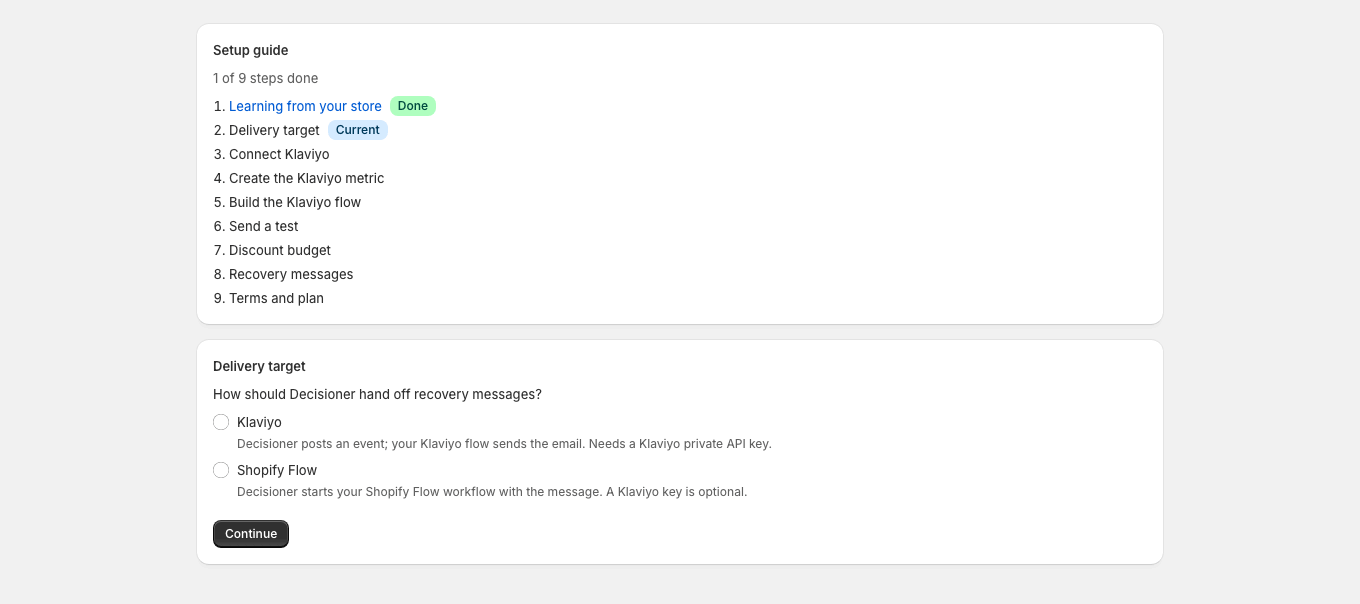
Choose Klaviyo if you send email with Klaviyo, or Shopify Flow if you want a Flow workflow to send the email.
Setup: choose how emails are sent. The merchant chooses whether recovery emails are sent through Klaviyo or through a Shopify Flow workflow.
3. Connect Klaviyo
In Klaviyo, create a private API key with the scopes listed above.
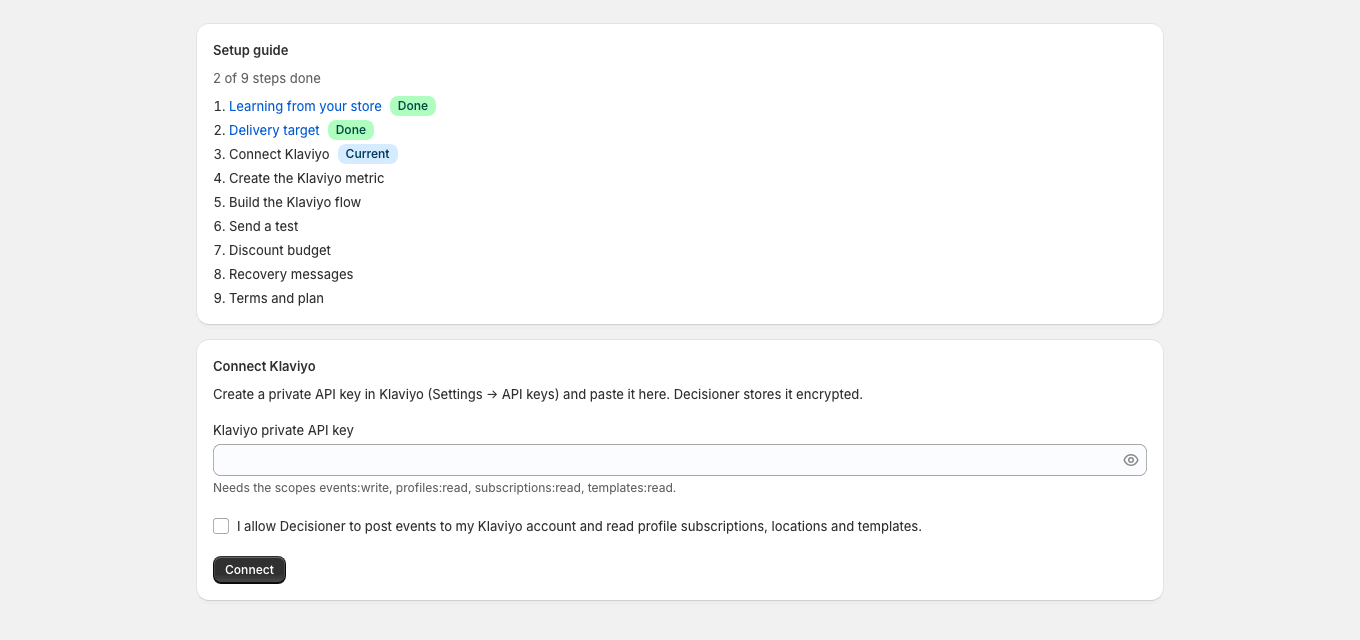
Paste the key, tick the box that allows Decisioner to post events, and select Connect.
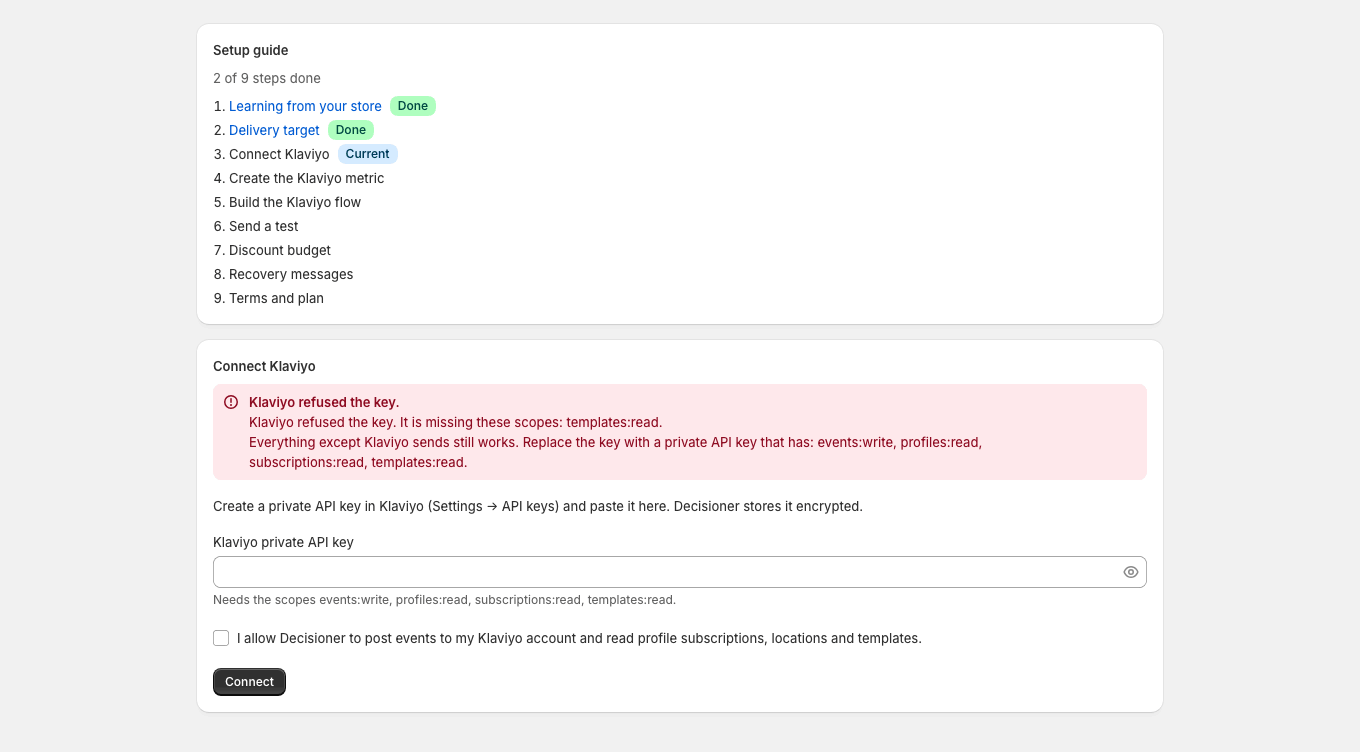
If Klaviyo refuses the key, the step lists the missing scopes.
Setup: connect Klaviyo. The merchant pastes a private Klaviyo API key, allows Decisioner to post events and connects the account.
Setup: Klaviyo key not accepted. If Klaviyo refuses the key, the step lists the missing scopes and asks for a key that has them.
4. Setup event and Klaviyo flow
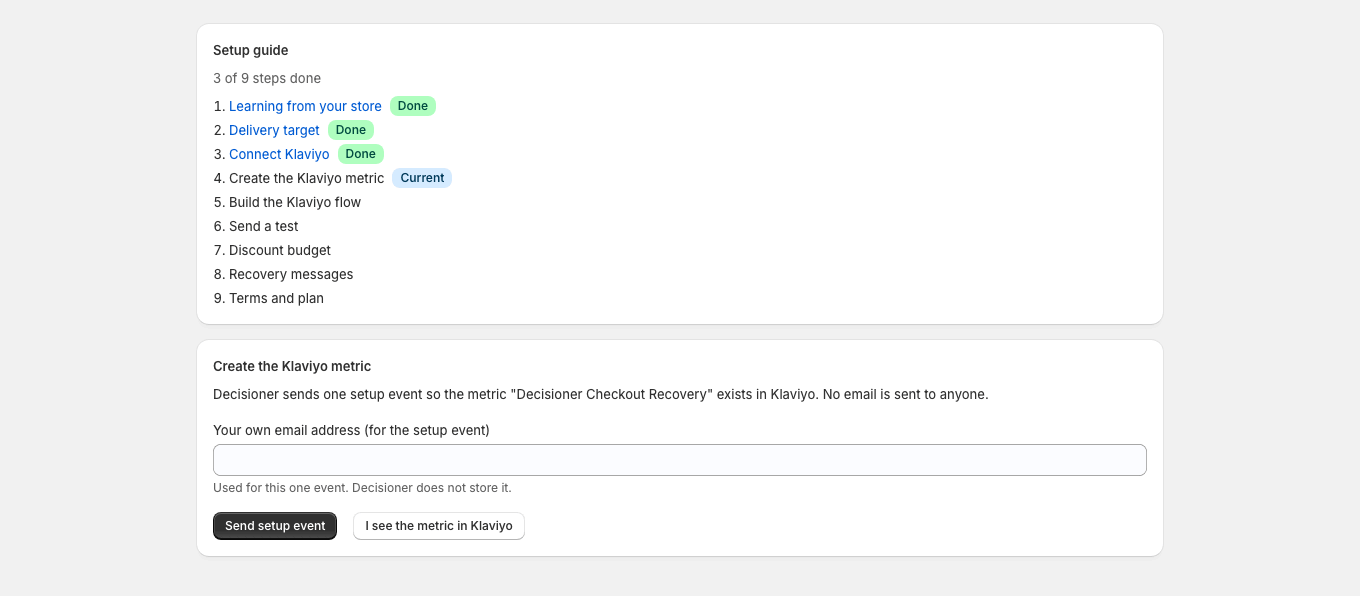
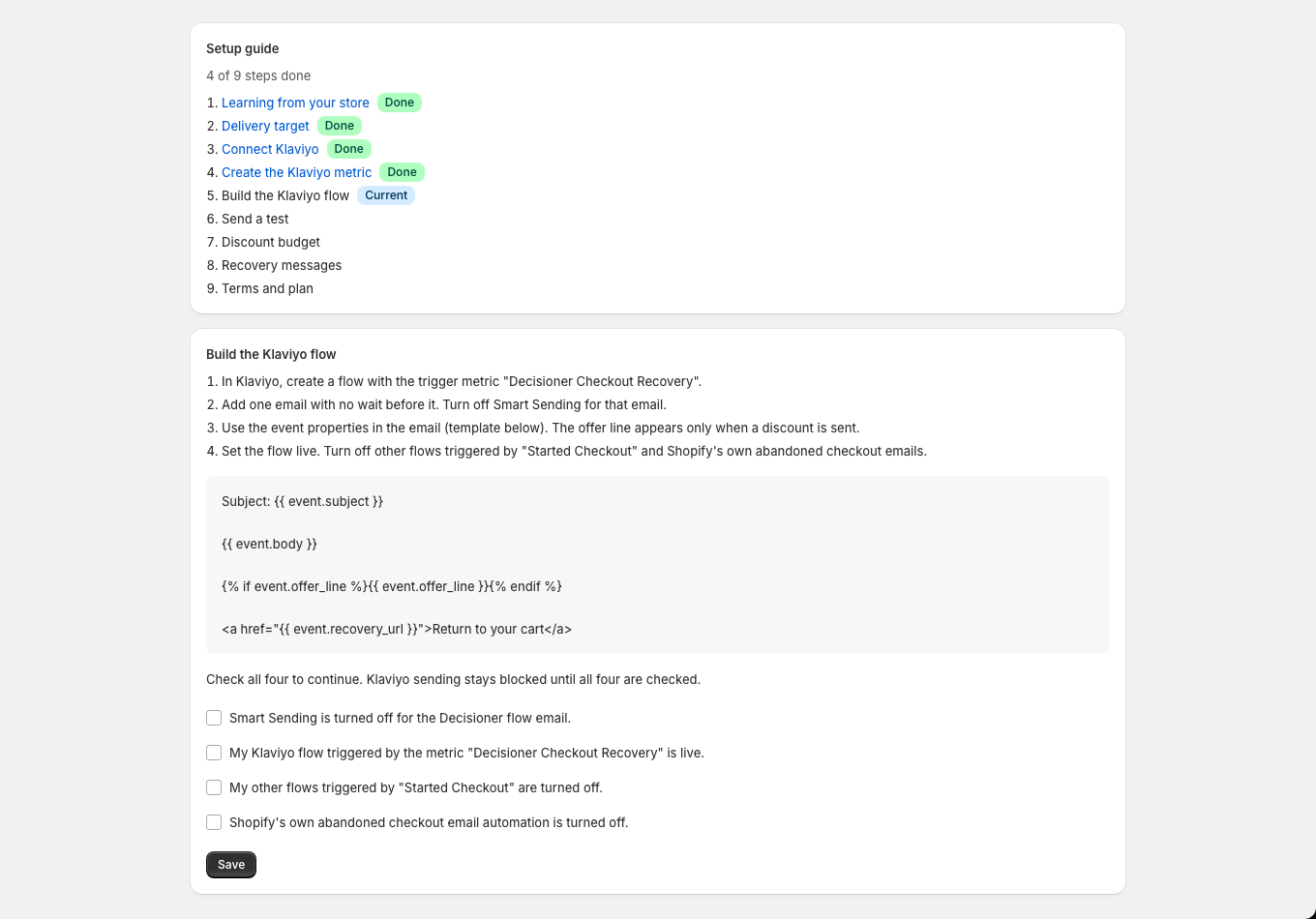
Decisioner sends one setup event so the Decisioner Checkout Recovery metric appears in Klaviyo. Then build a Klaviyo flow triggered by that metric, using the snippet shown, and confirm the four checks: the flow is live, Smart Sending is off, and other abandoned-checkout flows and Shopify's own abandonment emails are turned off.
Setup: send the setup event. Decisioner sends one setup event so the Decisioner Checkout Recovery metric appears in Klaviyo, and the merchant confirms they see it.
Setup: build the Klaviyo flow and confirm. Step-by-step instructions and a template snippet help the merchant build the Klaviyo flow, then four checkboxes confirm the flow is set up correctly.
5. Send a test email
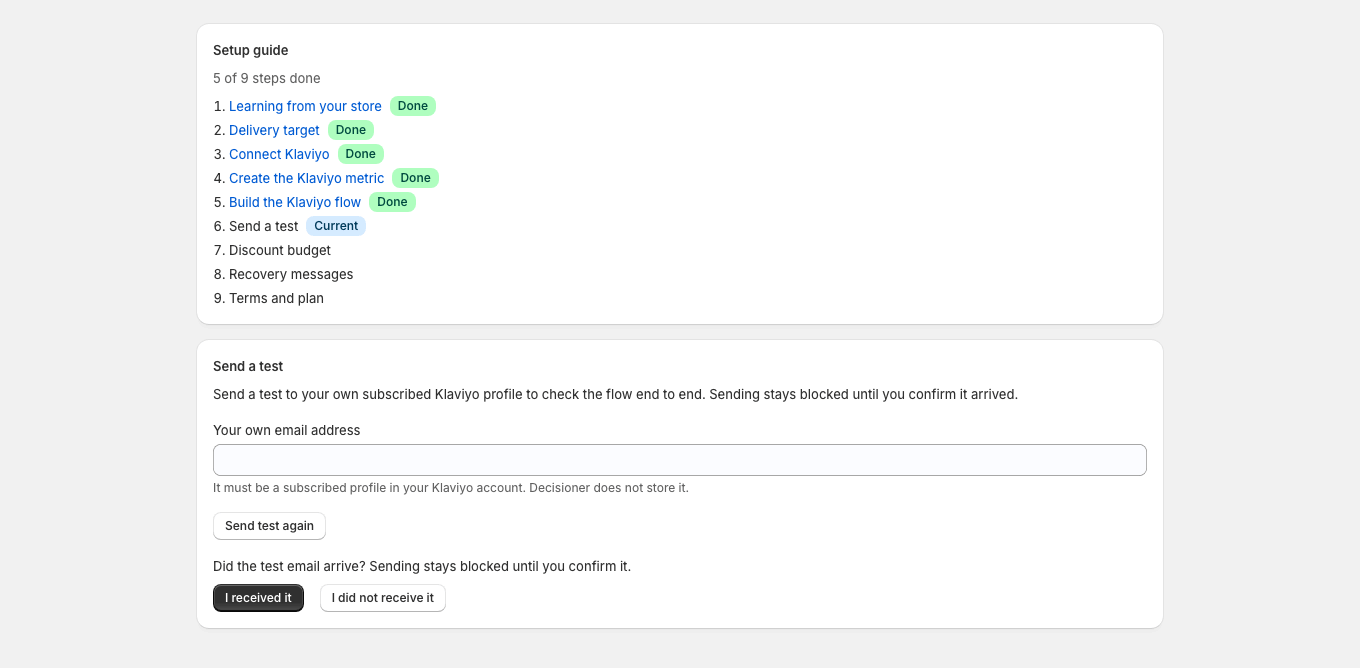
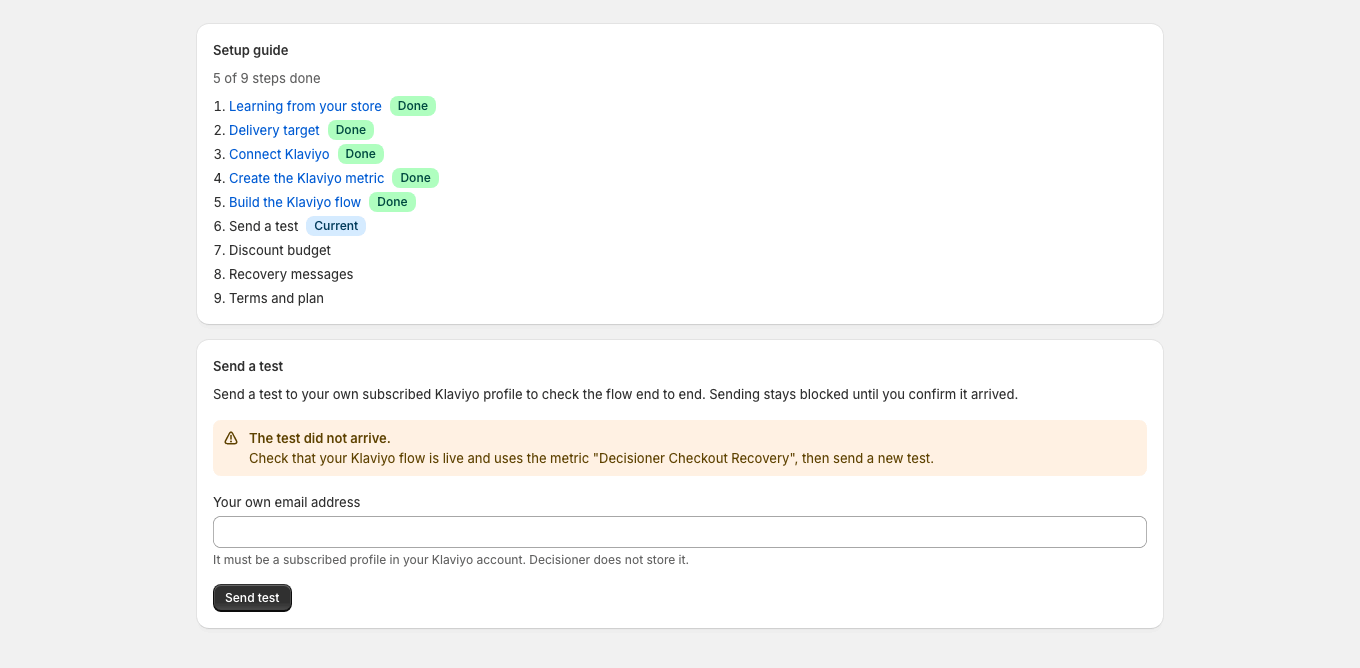
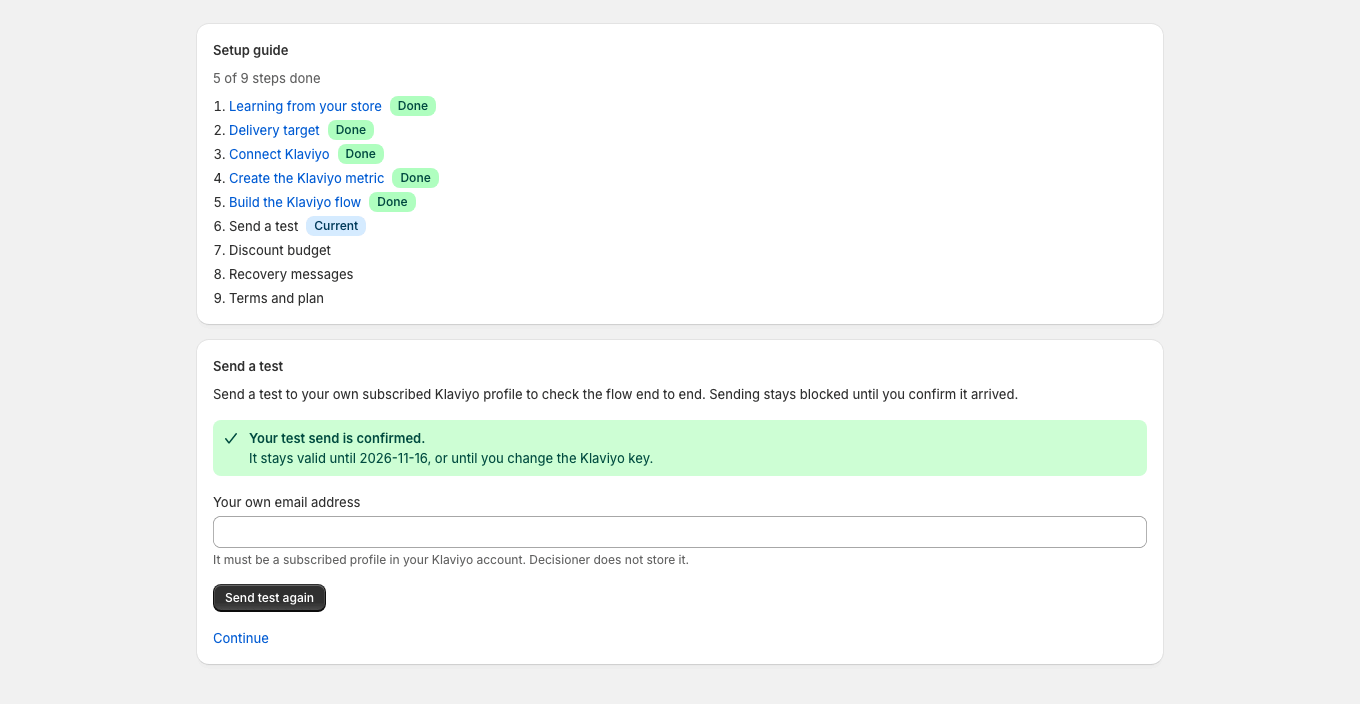
Send a test to your own subscribed Klaviyo profile and confirm that it arrived. Sending stays blocked until you confirm. If it did not arrive, the step tells you what to check.
Setup: send a test email. The merchant sends a test email to their own subscribed Klaviyo profile and confirms whether it arrived; sending stays blocked until then.
Setup: test email not received. When the test email did not arrive, the step explains what to check in Klaviyo and lets the merchant send a new test.
Setup: test email confirmed. A confirmed test email unlocks sending and shows how long the confirmation stays valid.
If you chose Shopify Flow
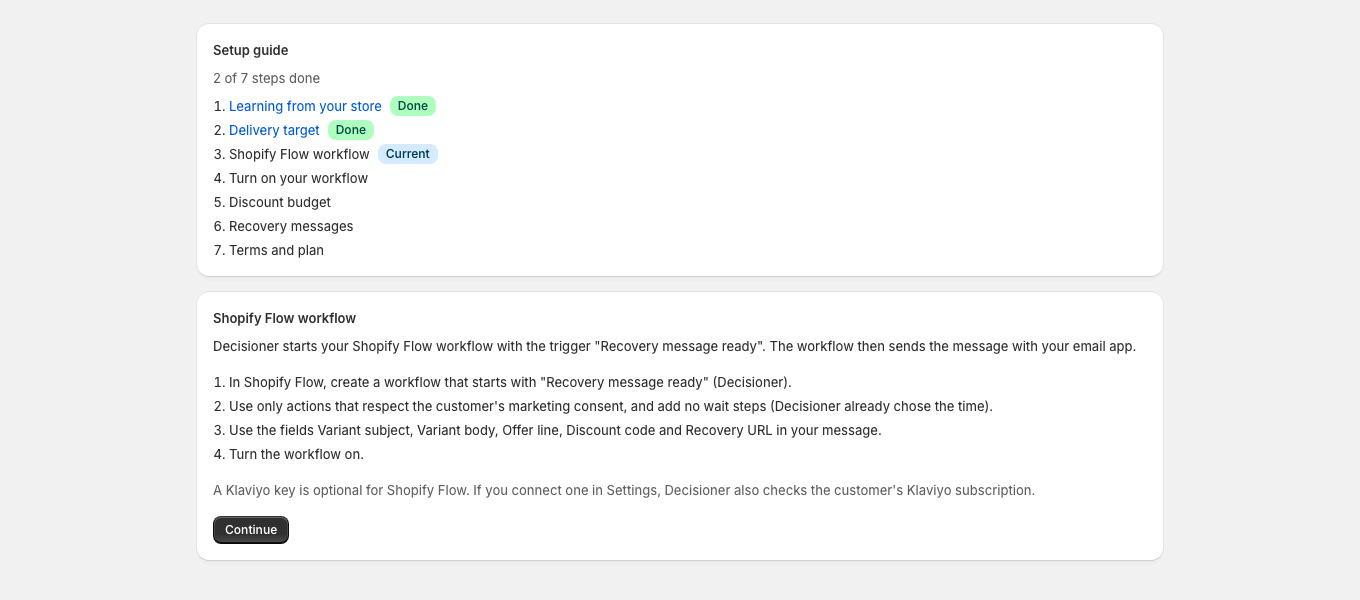
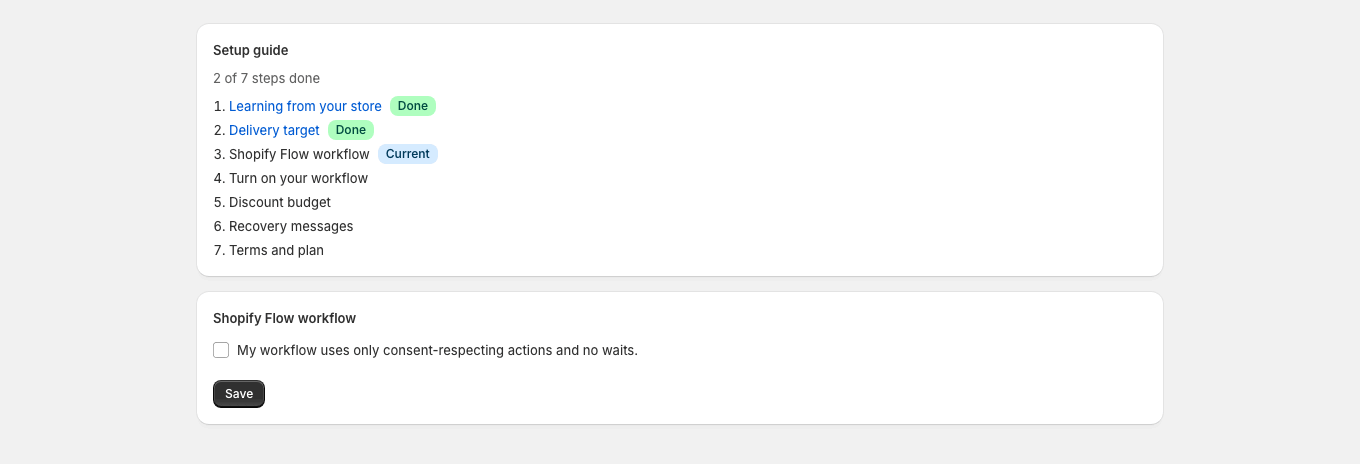
Build a workflow that starts with the Recovery message ready trigger and sends the email with a consent-respecting action. Do not add waits; Decisioner already picks the send time. Confirm the workflow rules, then turn the workflow on. The guide continues when Shopify reports that the workflow is on.
Setup: Shopify Flow path. On the Shopify Flow path, the guide explains how to build a workflow that starts with the Recovery message ready trigger.
Setup: Flow workflow confirmation. The merchant confirms that their Flow workflow only uses consent-respecting actions and adds no waits.
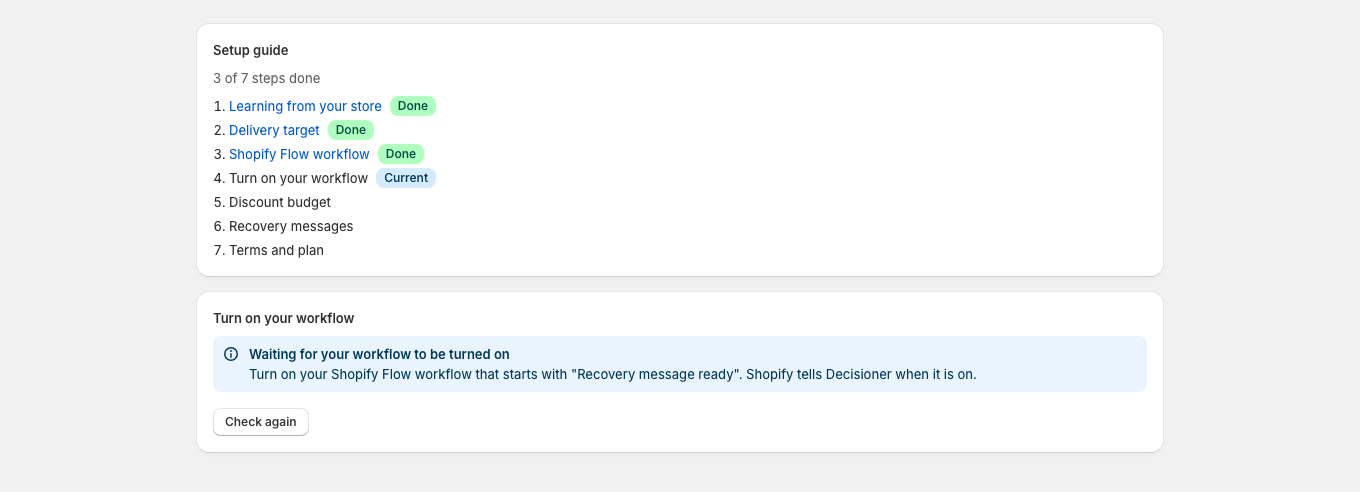
Setup: waiting for the workflow. The guide waits until the merchant turns on the Flow workflow, and the merchant can check again at any time.
6. Discount budget
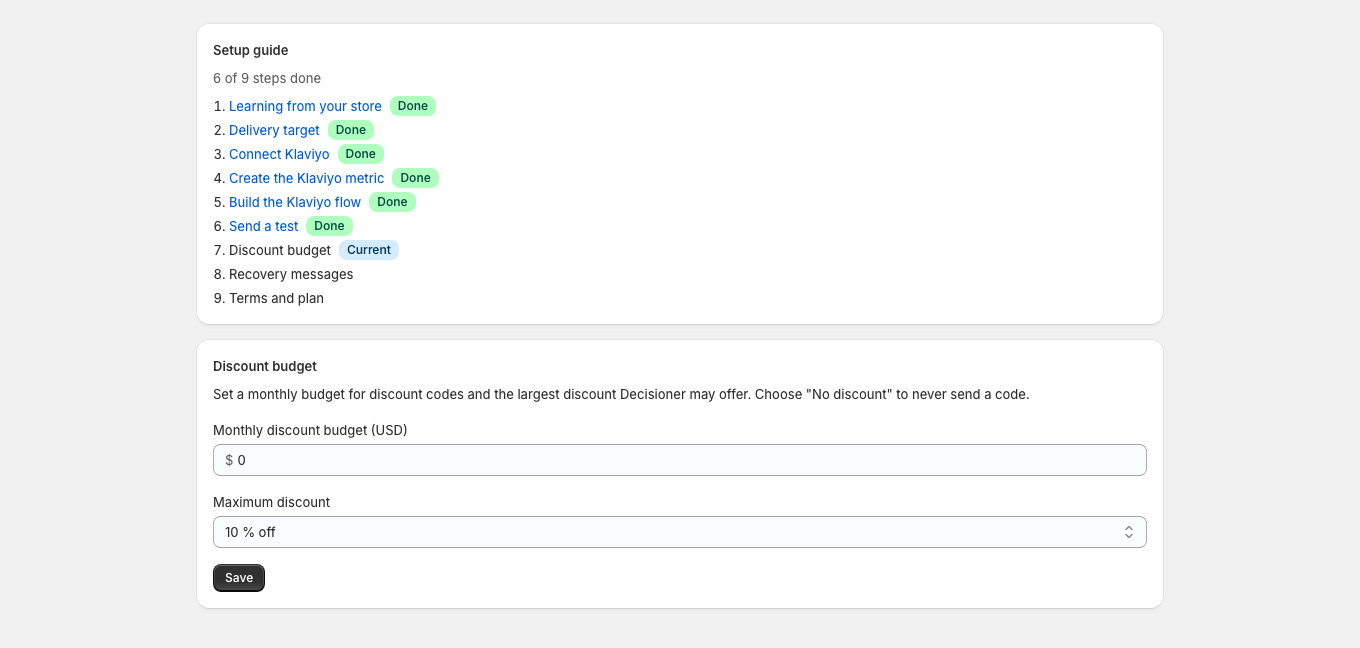
Set the monthly discount budget and the largest discount Decisioner may offer, or choose No discount.
Setup: discount budget. The merchant sets a monthly discount budget and the largest discount Decisioner may offer, or chooses No discount.
7. Recovery messages
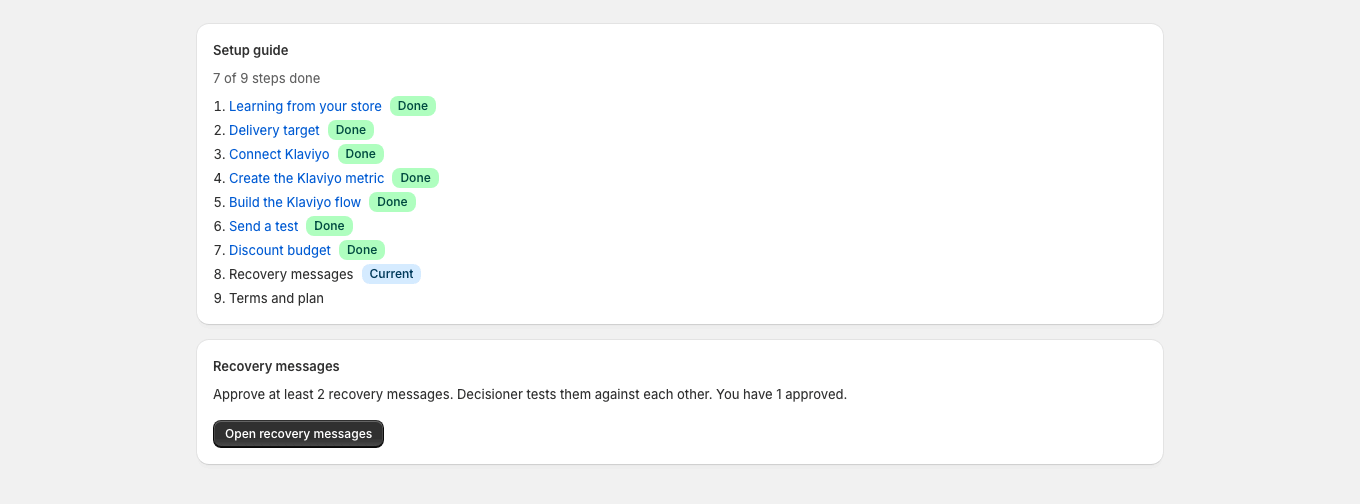
Approve at least two recovery messages. See Recovery messages for how to draft them.
Setup: recovery messages. The guide asks the merchant to approve at least two recovery messages and links to the message editor.
8. Terms and plan
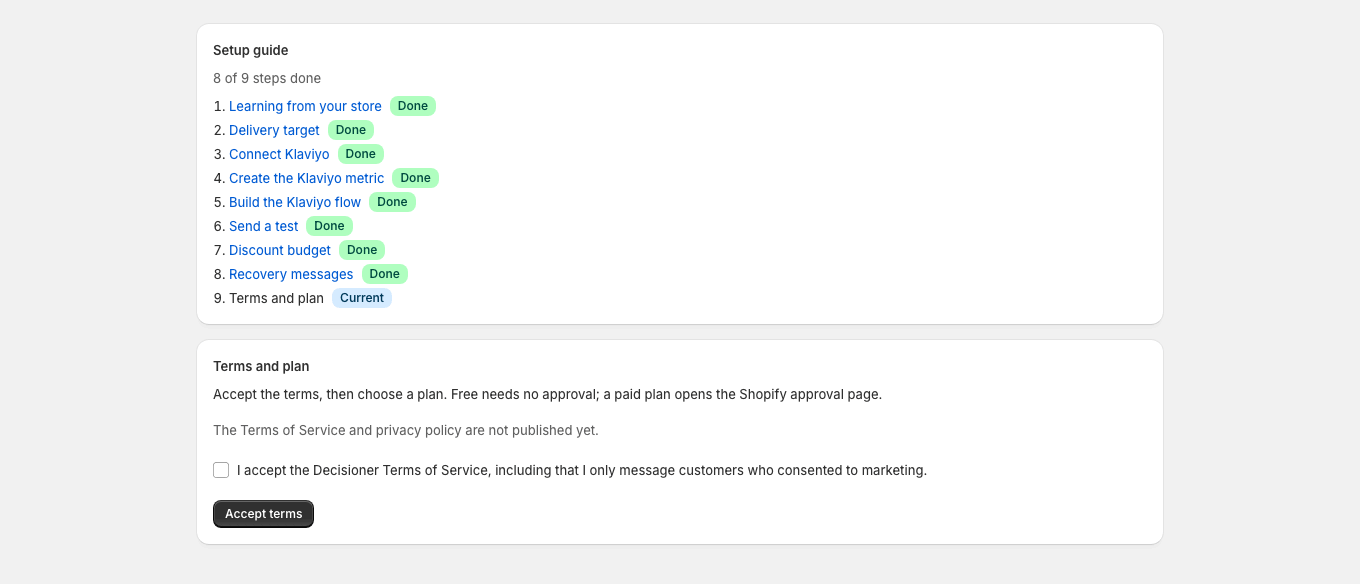
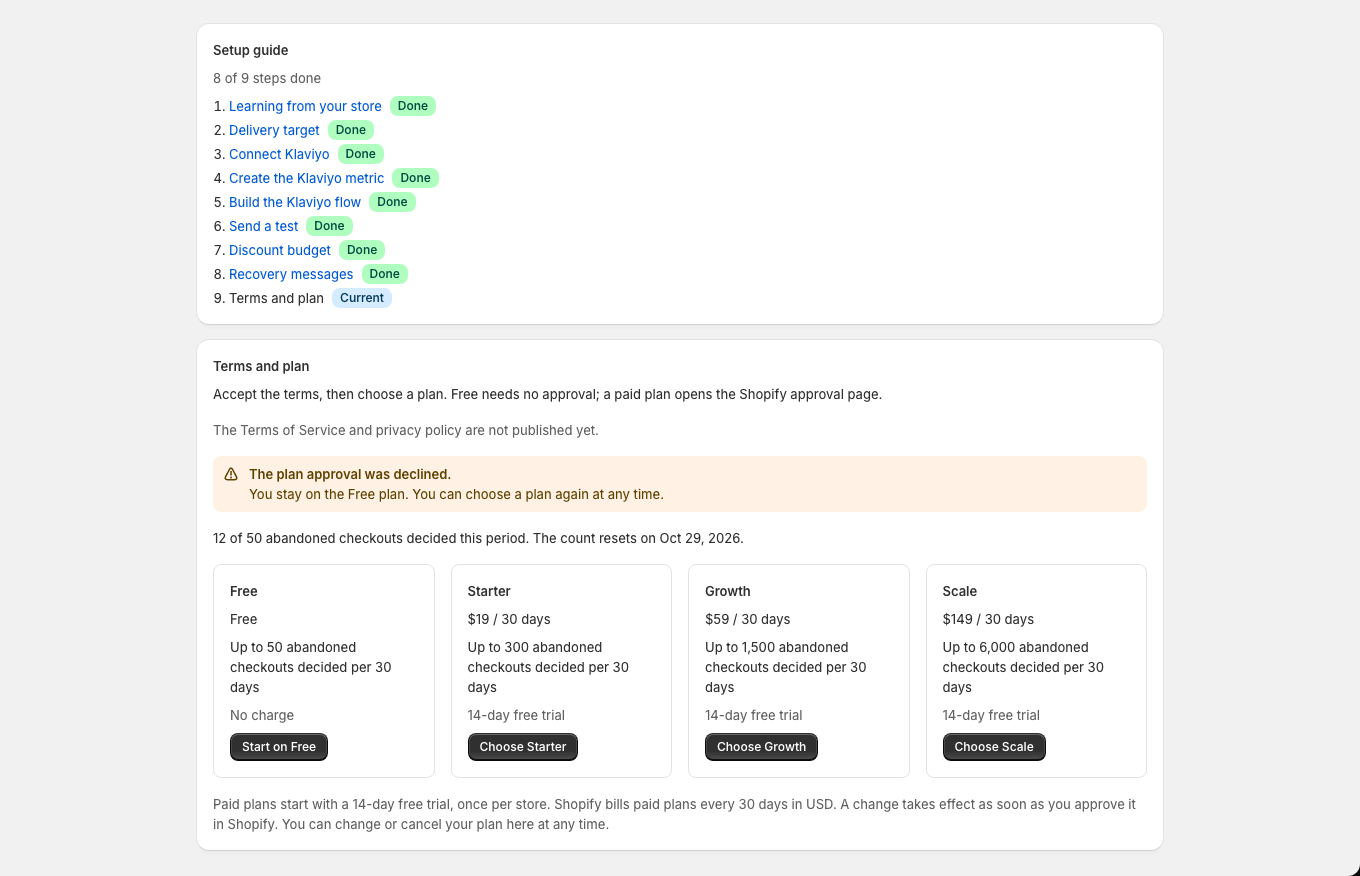
Accept the Terms of Service and choose a plan. The Free plan starts at once; a paid plan opens Shopify's approval page.
Setup: terms and plan. In the last step the merchant accepts the terms before choosing a plan; a paid plan opens Shopify's approval page.
Setup: plan approval declined. If the merchant declines the charge on Shopify's approval page, the plan step shows that the approval was declined, keeps the store on the Free plan and offers the plans again to retry.
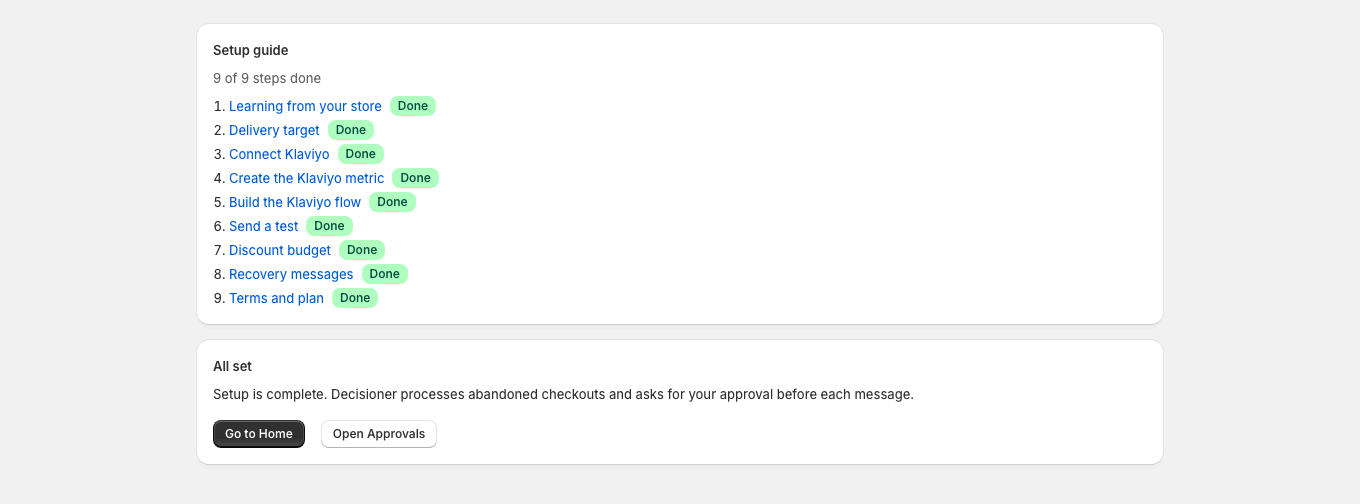
Setup: complete. When setup is complete, all nine steps are marked done and the merchant can go to Home or open Approvals.
Home
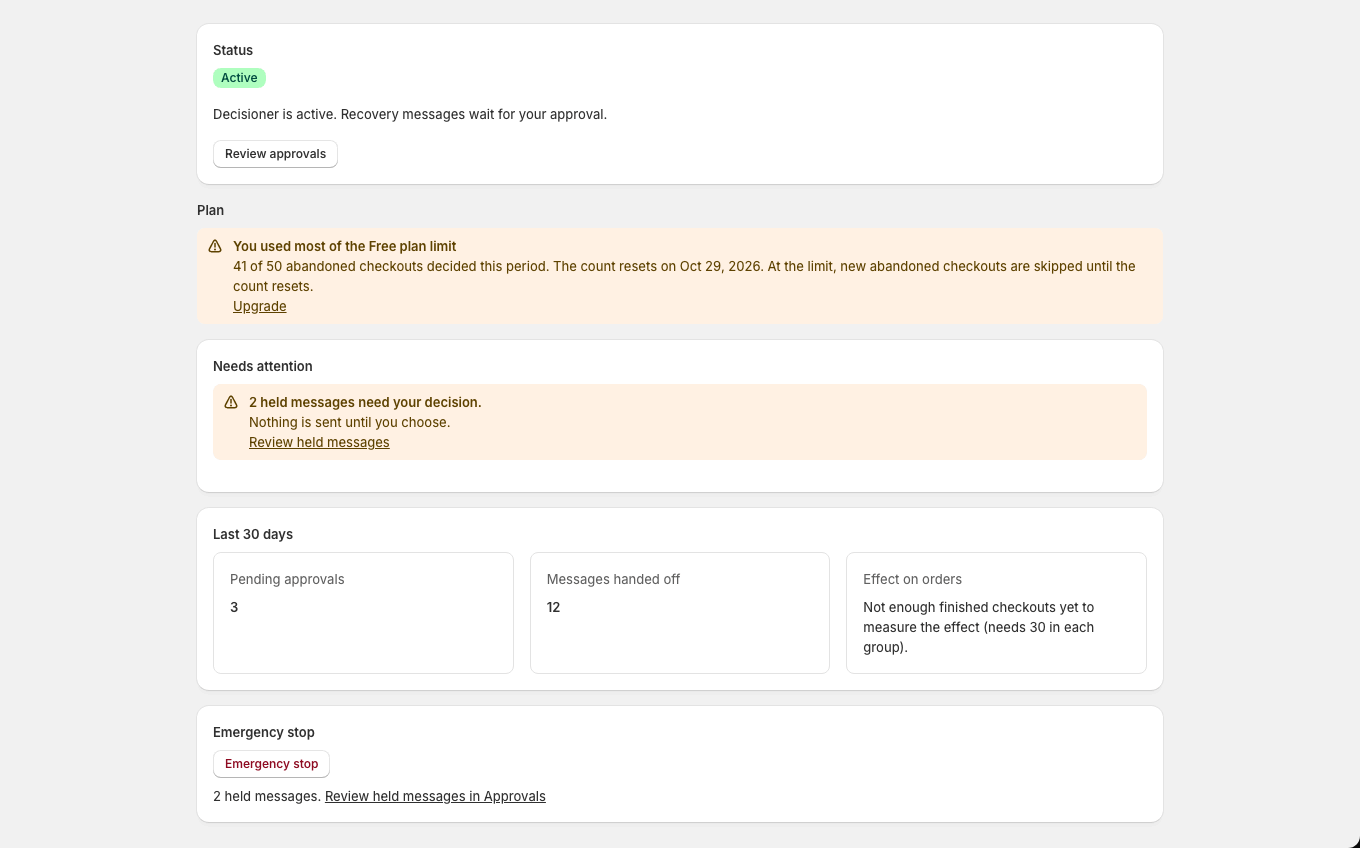
Home shows whether Decisioner is sending, what waits for you, and the numbers for the last 30 days.
Home: active, with plan-limit warning. The active Home shows the status, a warning that most of the Free plan limit is used with an Upgrade link, a warning that two held messages need a decision, the 30-day numbers and the Emergency stop.
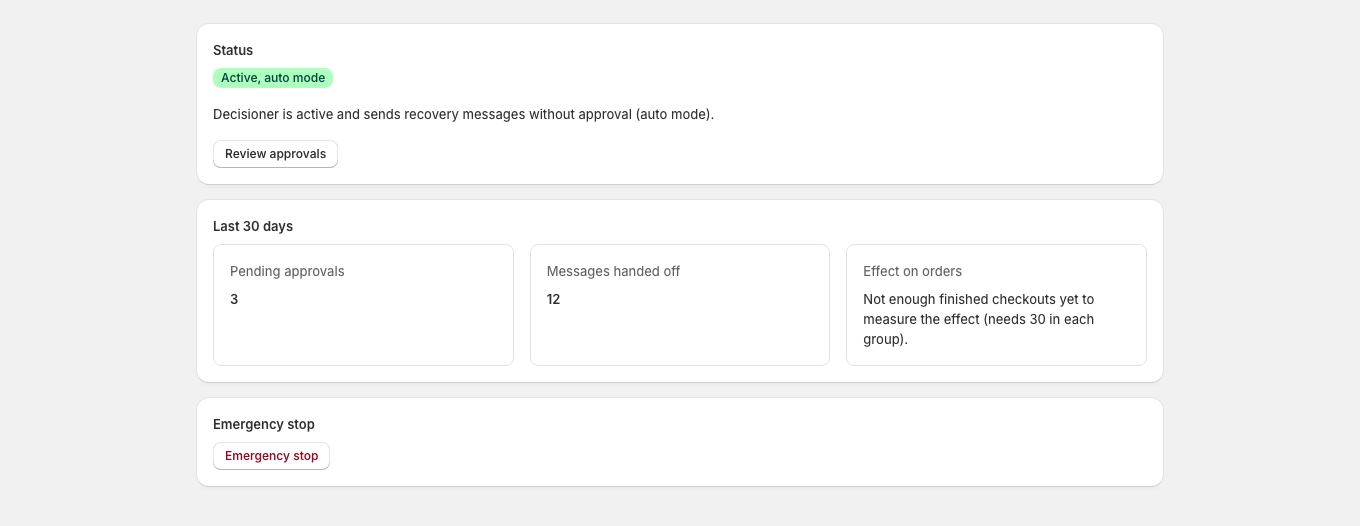
Home: auto mode on. In auto mode, Home says that Decisioner sends recovery messages without approval and shows pending approvals, messages handed off and the effect on orders.
Measured effect
Home compares orders from customers who could get a message with orders from a small random holdout group that never gets one. Until there is enough data, Home says so instead of showing a number.
Other states
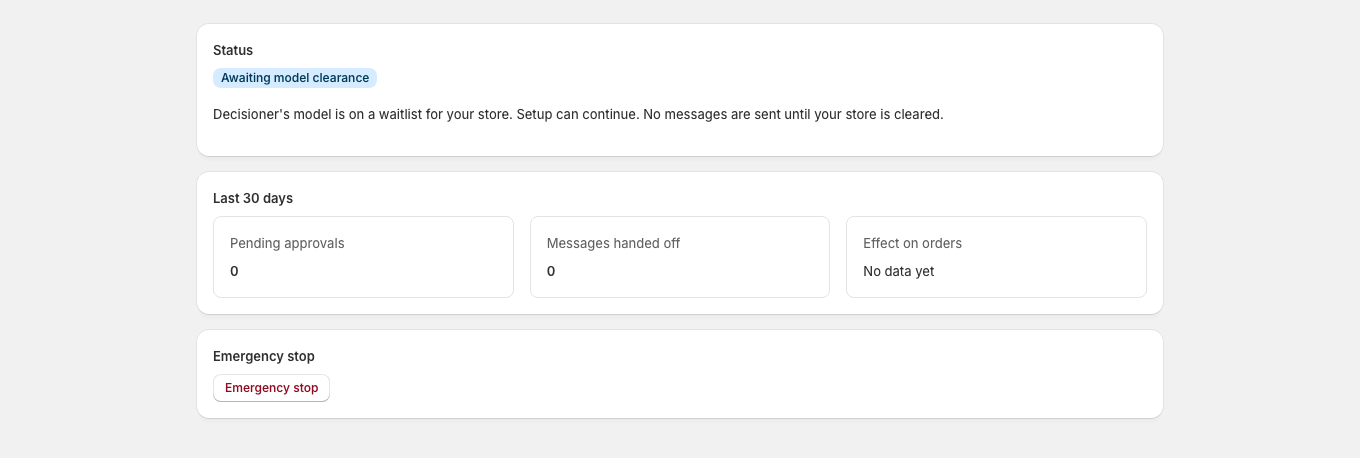
Home: waiting for model clearance. Home shows that the model is on a waitlist for the store, so setup can continue but no messages are sent until the store is cleared.
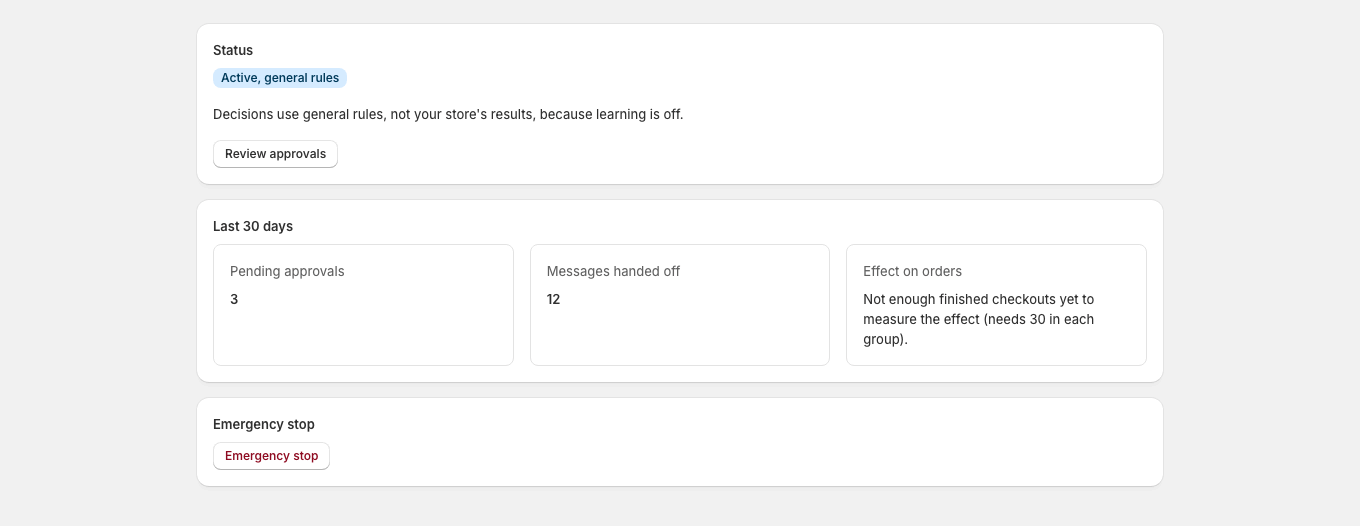
Home: learning off. When learning is off, Home explains that decisions use general rules instead of the store's own results.
Approvals
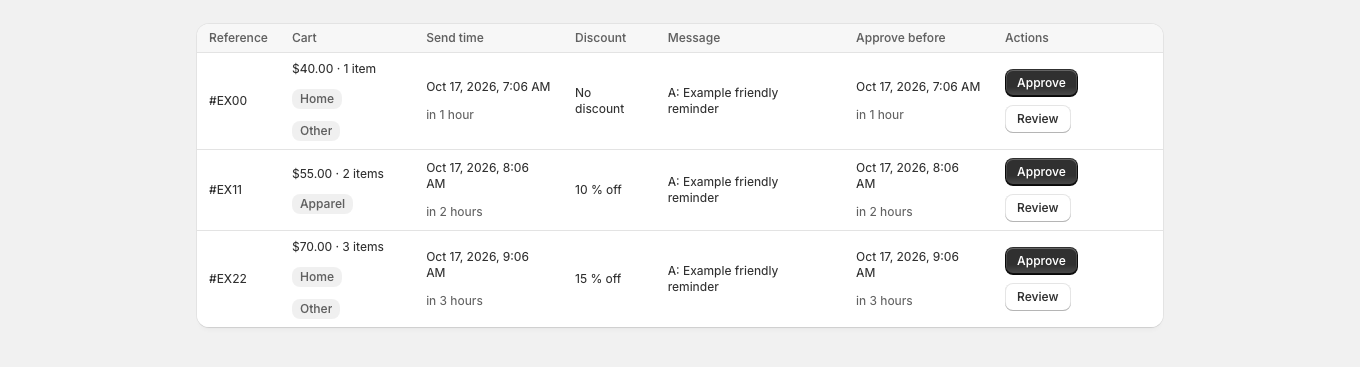
Every recovery message waits in Approvals until its send time, unless auto mode is on. Each row shows the cart, the send time, the discount, the message and the approval deadline.
Select Approve to send the message at its send time.
Select Review to see the details, change the message or reject it.
Approvals: messages waiting. The approvals queue lists each waiting recovery message with its cart, send time, discount, message and deadline, plus Approve and Review buttons.
Review a message
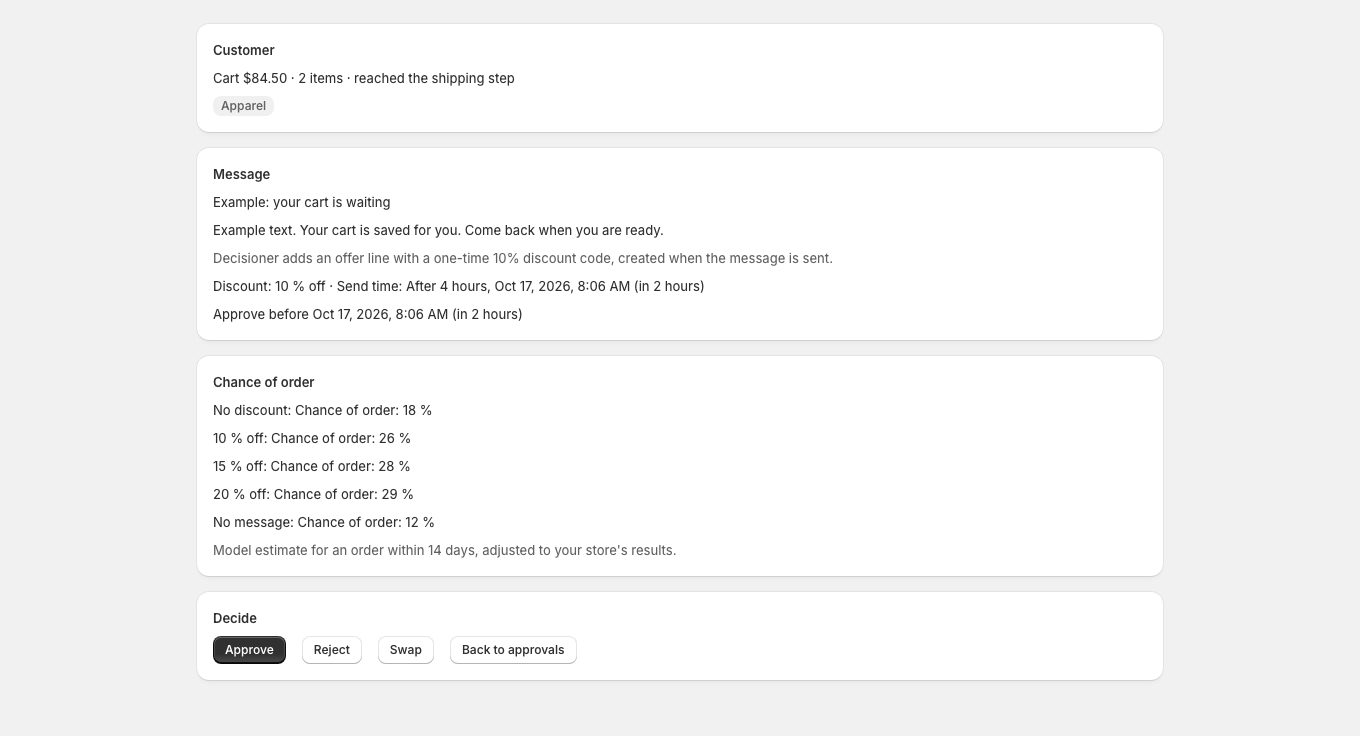
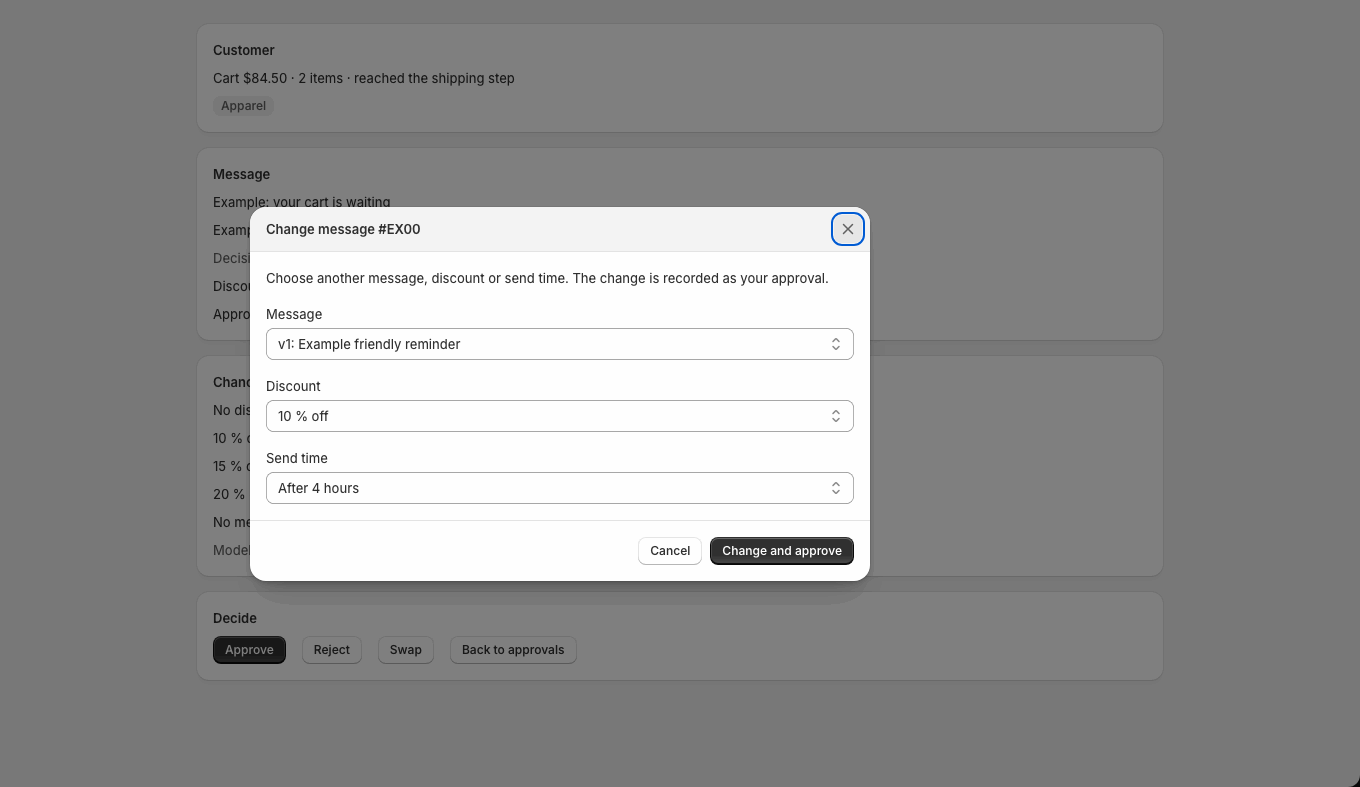
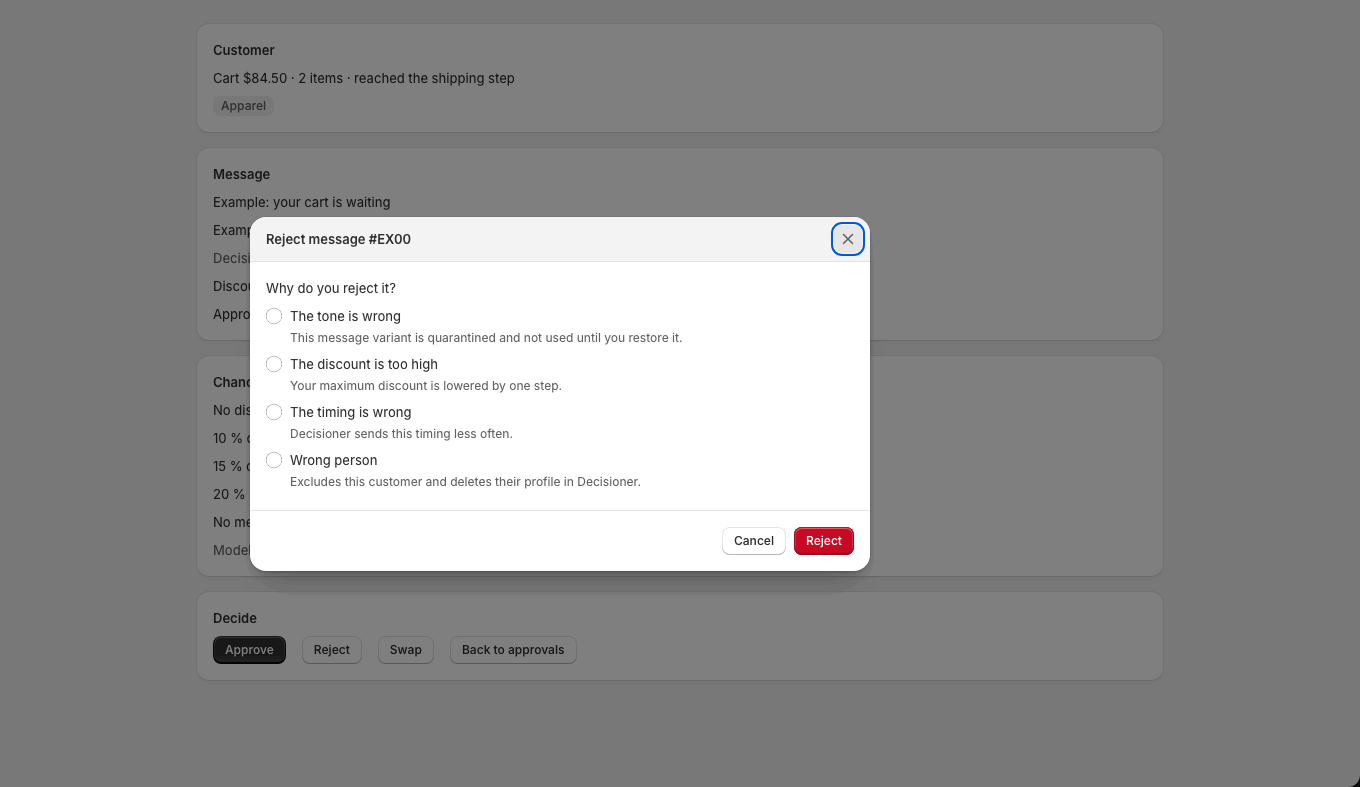
The detail page shows the chance of an order for each discount level. Change message lets you pick another message, discount or send time; your change counts as approval. Reject asks for a reason, and each reason changes future decisions: a tone reason pauses that message, a discount reason lowers the largest discount, a timing reason shifts send times, and a wrong-customer reason excludes the customer.
Approval detail. The detail page shows the pseudonymous cart, the message, discount and send time, the chance of order for each discount level and the Approve, Reject and Swap buttons.
Approval detail: change message. The Change message dialog lets the merchant pick another message, discount or send time; the change counts as their approval.
Approval detail: reject. The Reject dialog asks why the message is rejected and explains what each reason changes.
Late and held messages
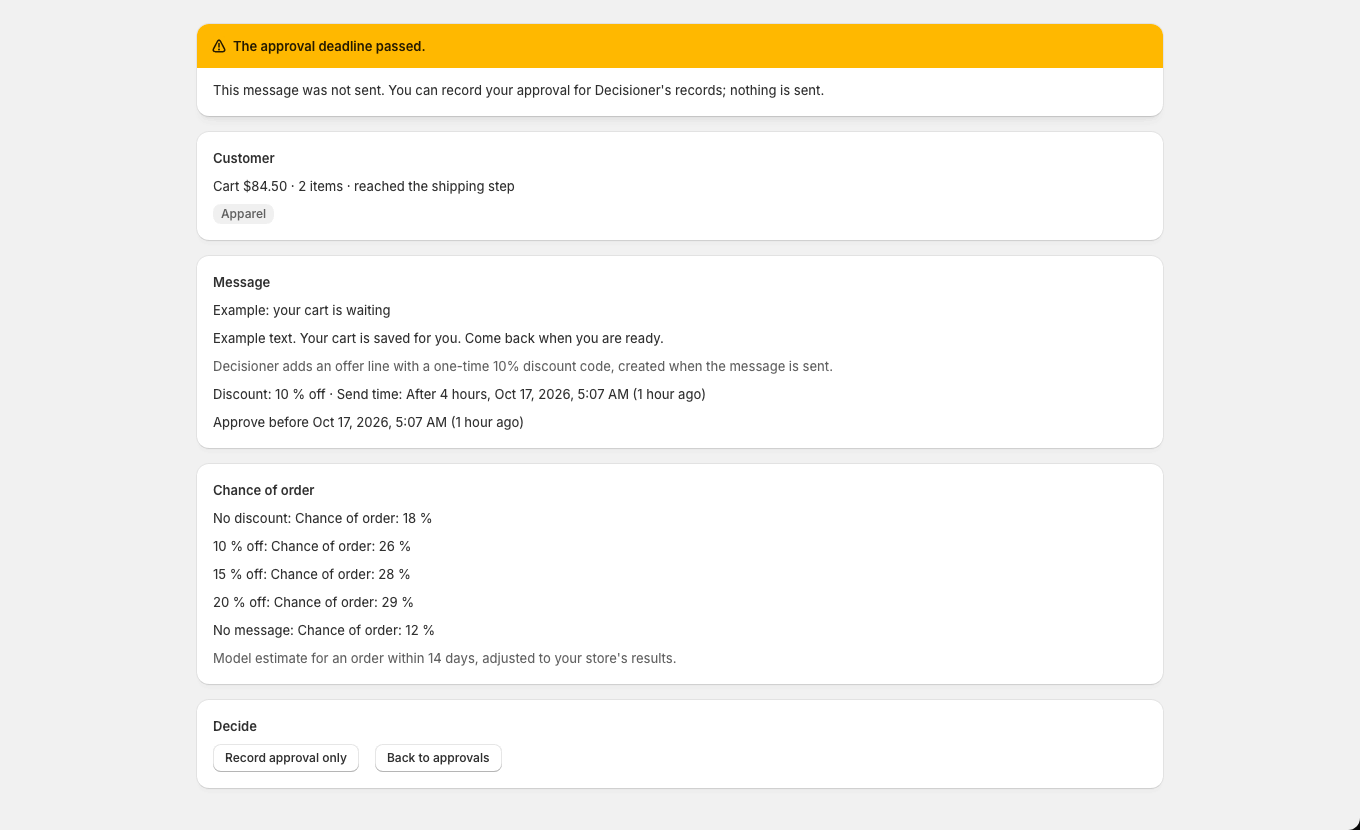
If the deadline passes, the message is not sent. You can still record your approval so Decisioner learns from it.
Approval detail: deadline passed. When the approval deadline has passed, the message was not sent and the merchant can only record their approval.
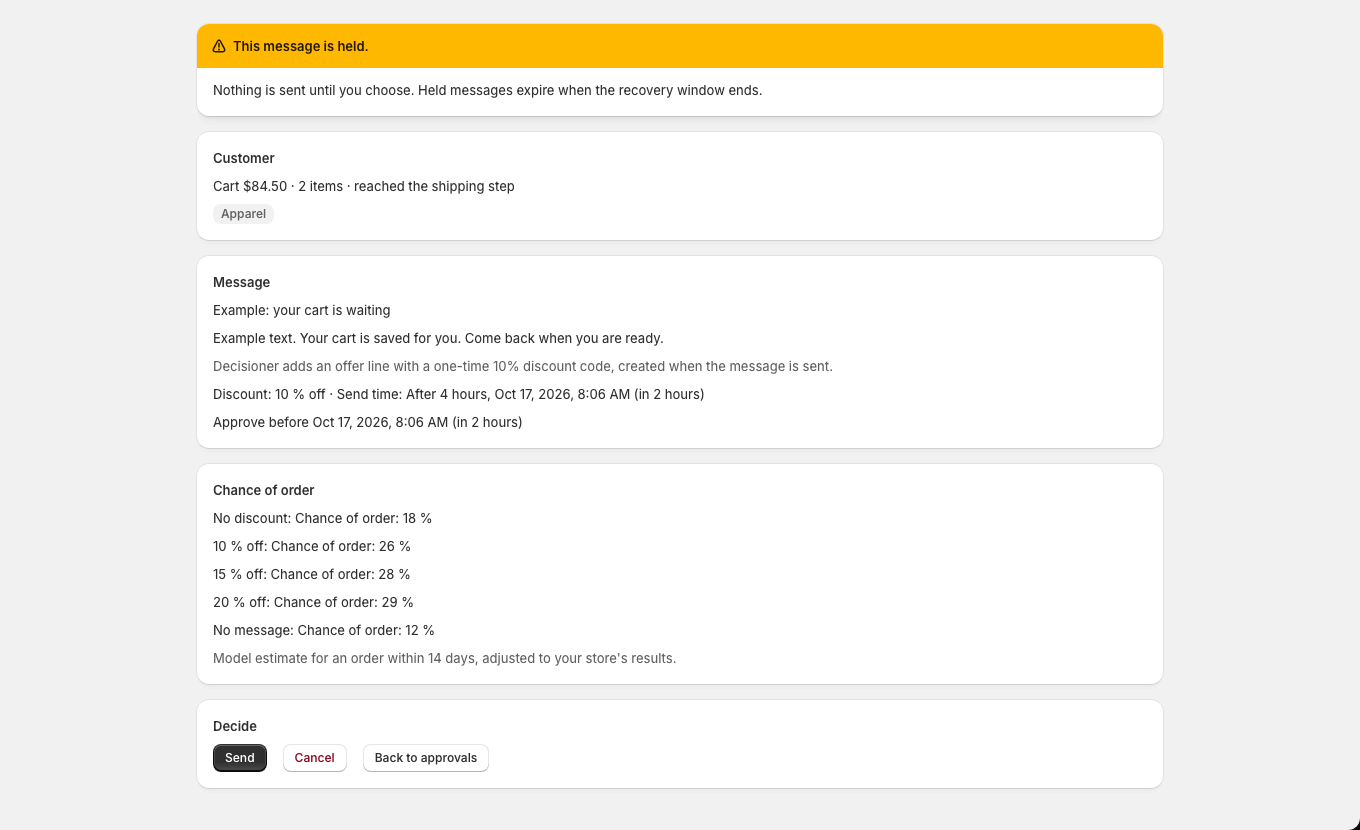
Approval detail: held message. A held message shows a warning that nothing is sent until the merchant chooses Send or Cancel.
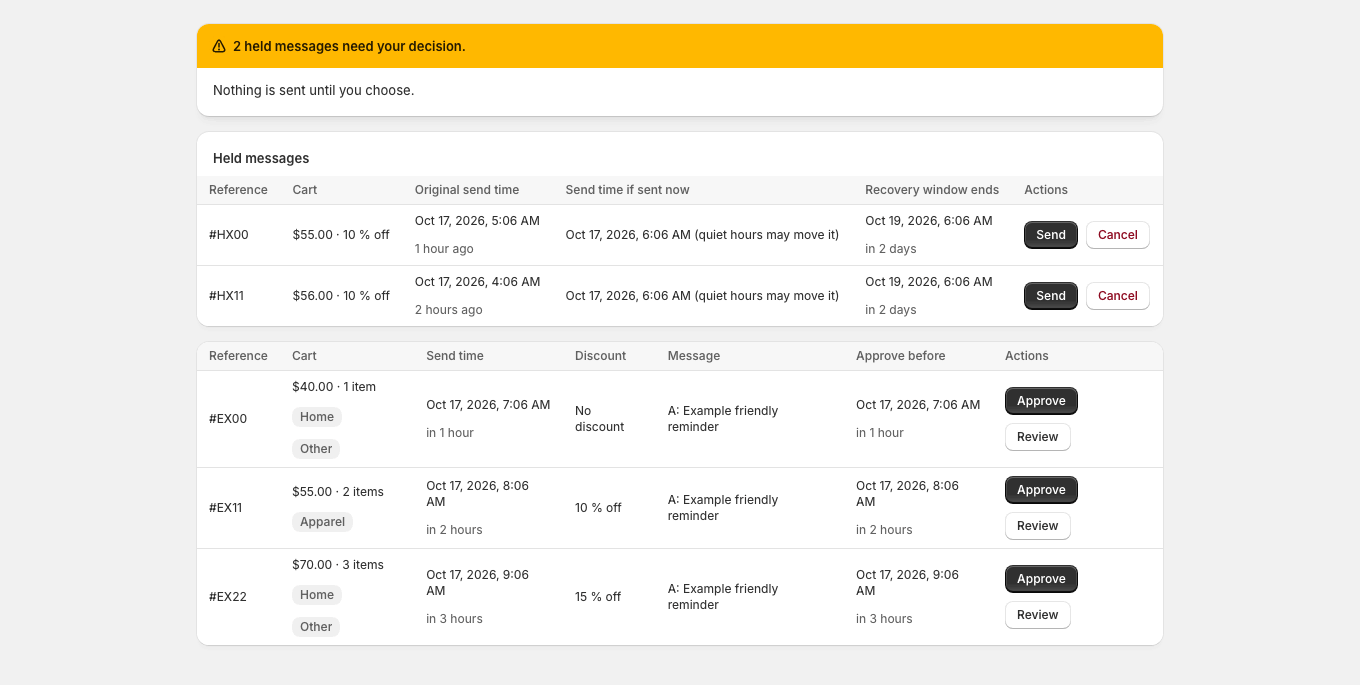
Approvals: held messages after resume. After sending resumes, held messages appear at the top so the merchant can send or cancel each one before its recovery window ends.
Approvals: nothing waiting. When nothing waits for approval, the page says so and explains that new messages appear here.
Checkout recovery settings and auto mode
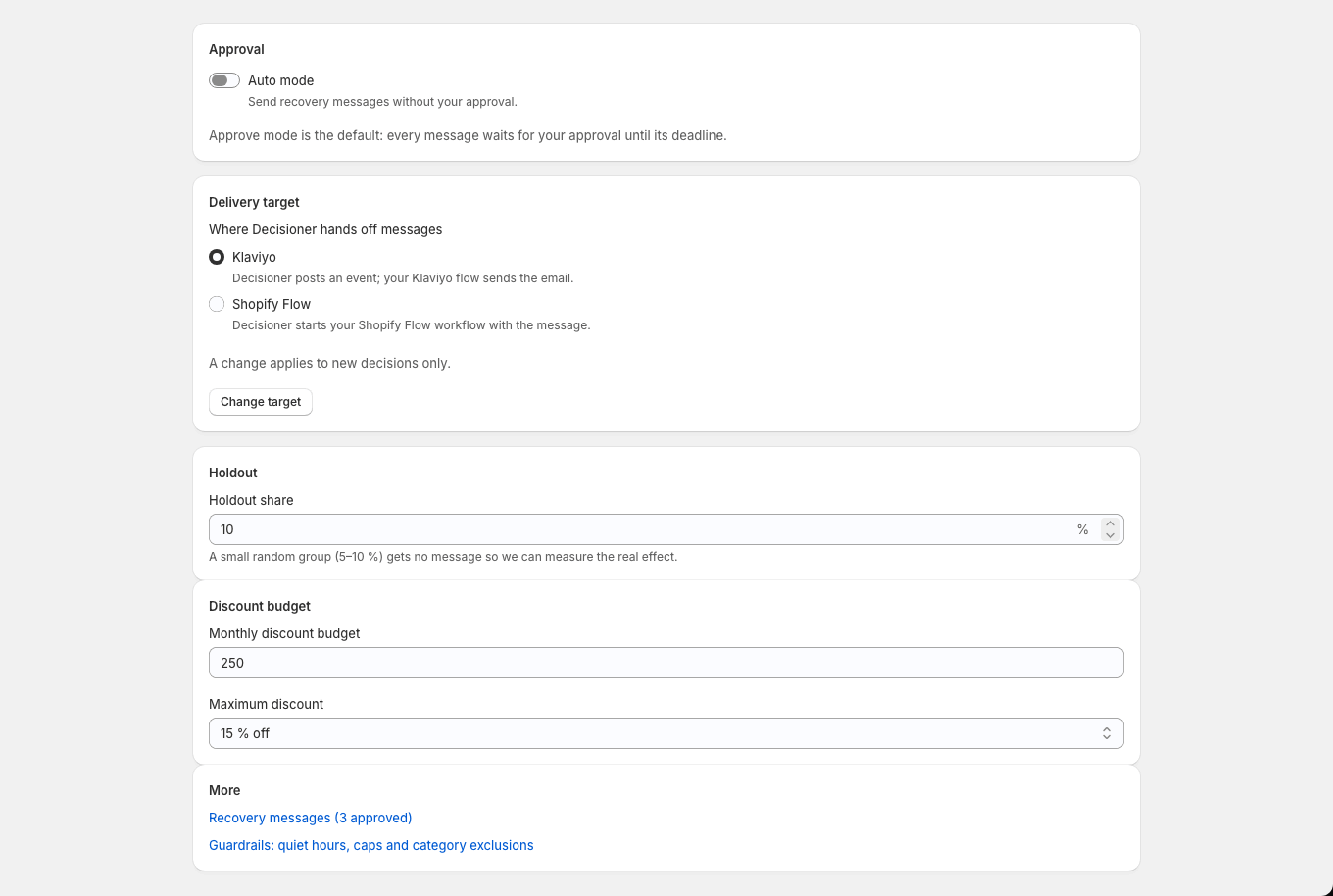
The checkout recovery page holds the settings for this use case: auto mode, how emails are sent, the holdout size and the discount budget.
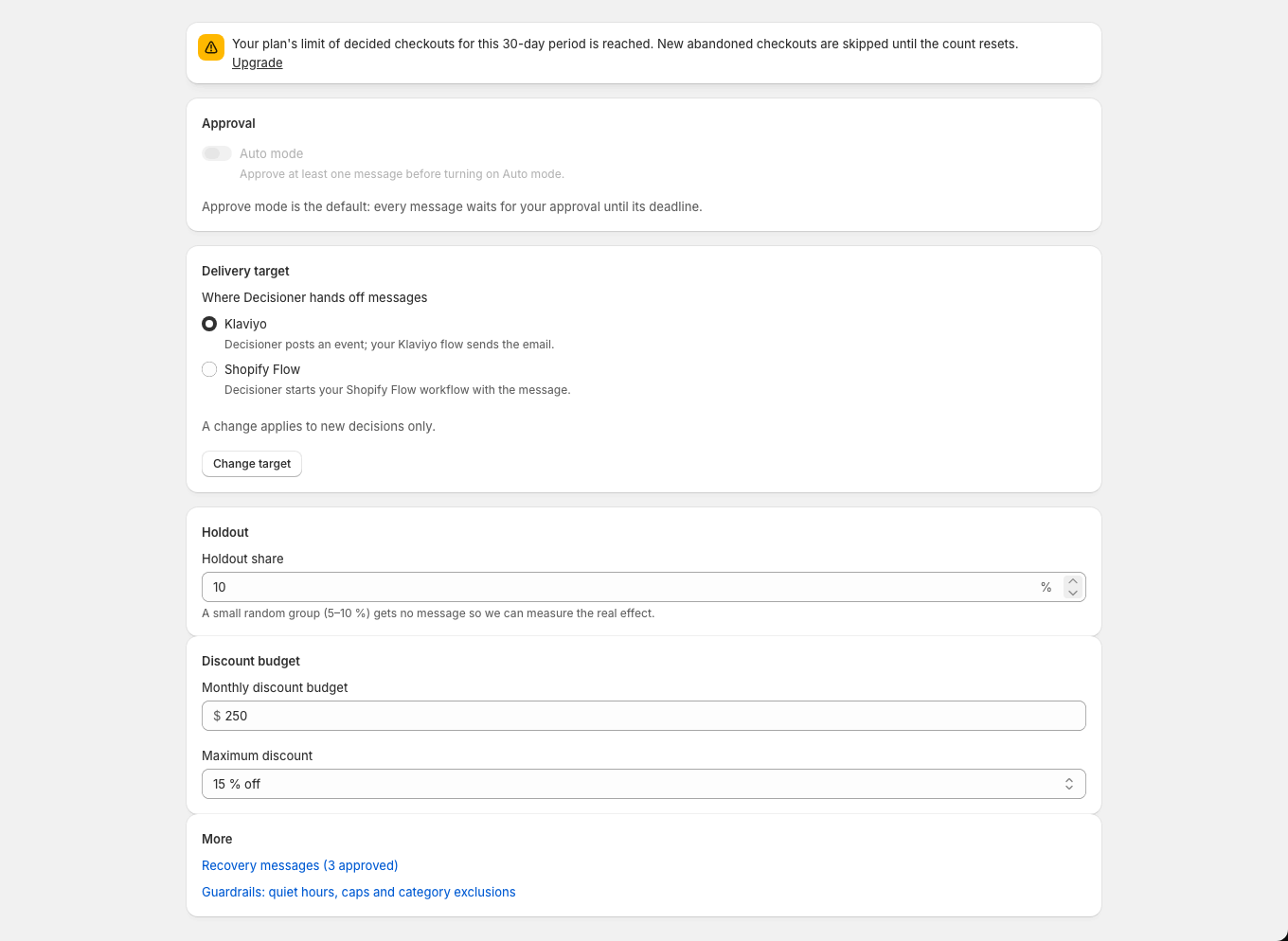
Checkout recovery settings. The checkout recovery page holds the auto mode switch, delivery target, holdout size, discount budget and links to messages and guardrails.
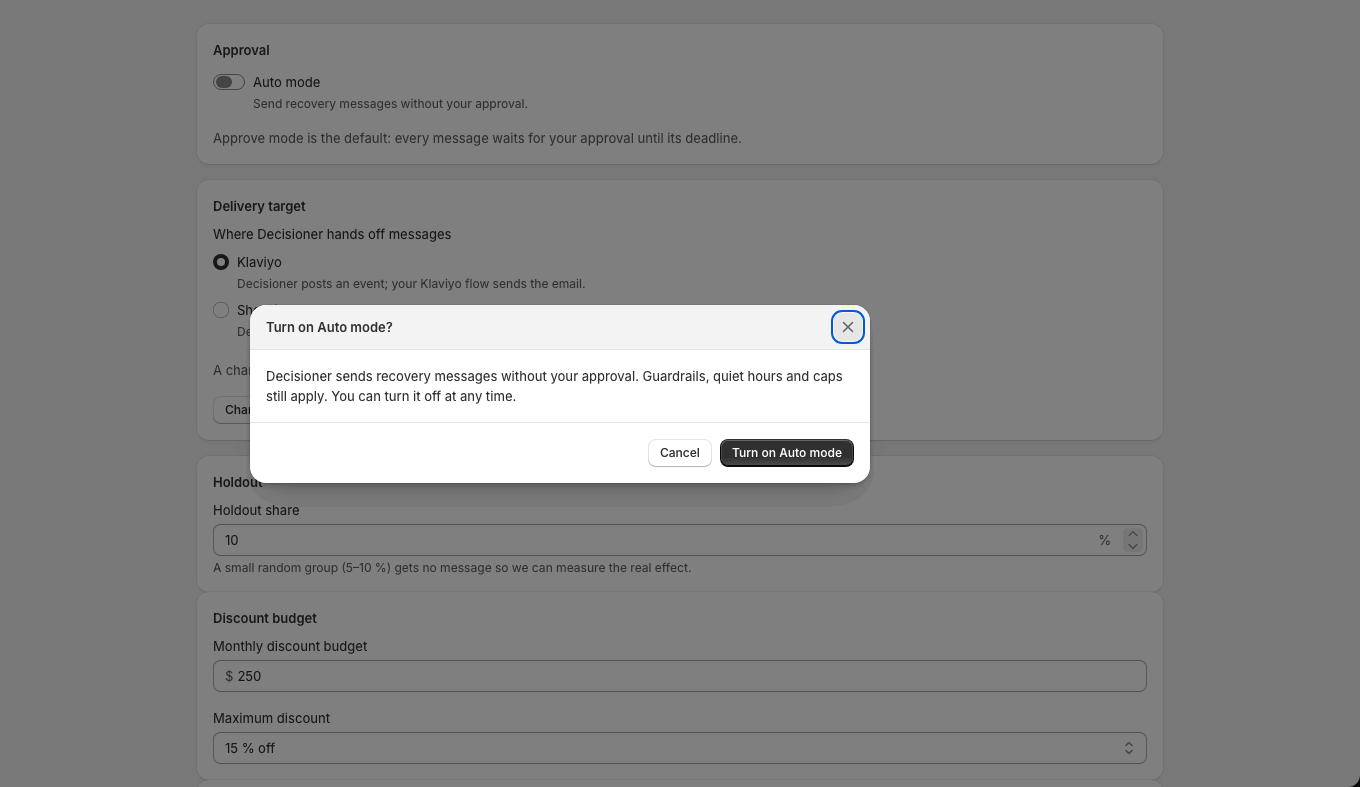
Turn on auto mode to let Decisioner send without your approval. Your discount limits, quiet hours and caps still apply, and the Emergency stop still works.
Checkout recovery: turn on auto mode. Turning on auto mode asks for confirmation and explains that guardrails, quiet hours and caps still apply.
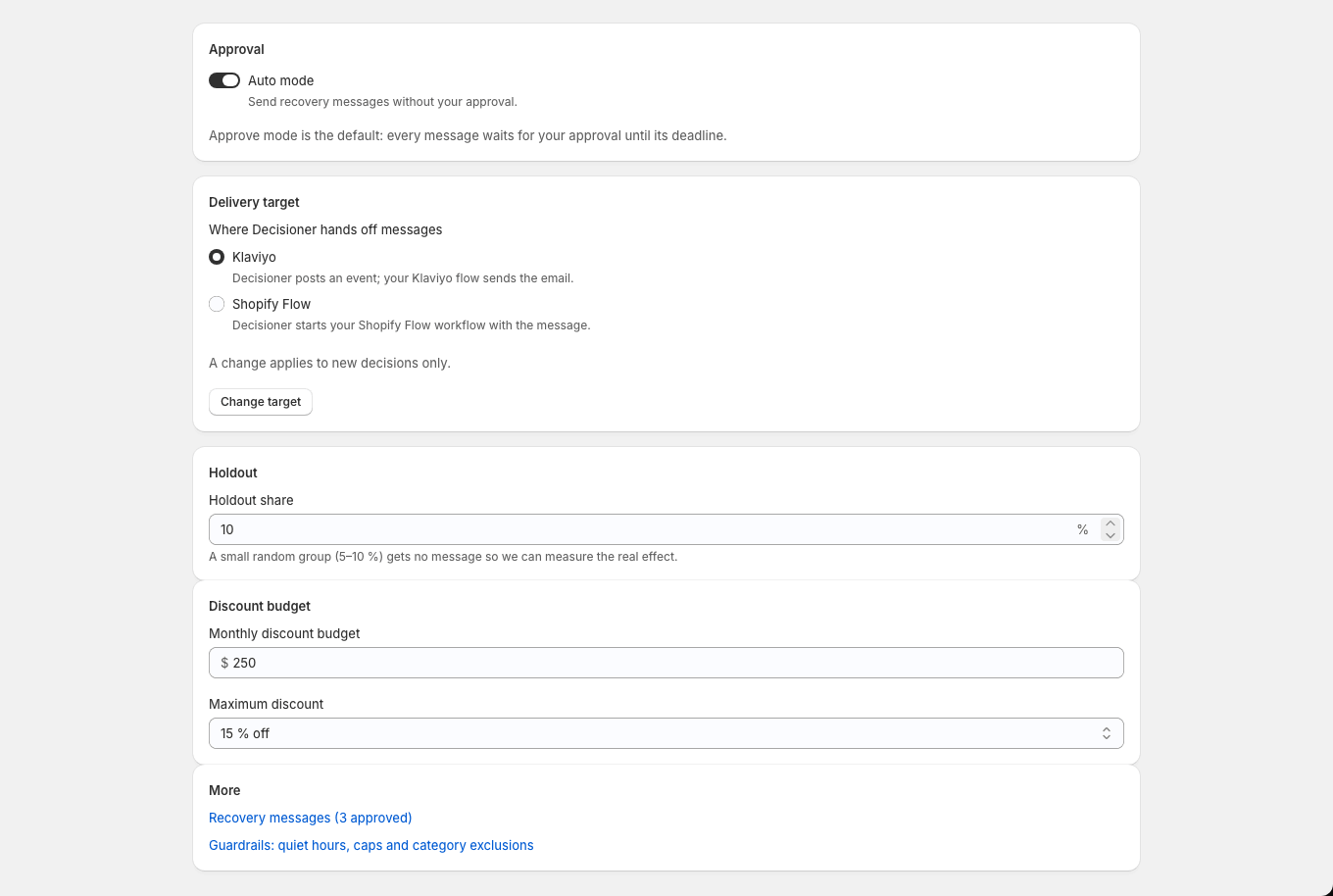
Checkout recovery: auto mode on. With auto mode on, the switch shows that recovery messages are sent without the merchant's approval.
Recovery messages
Decisioner only sends messages you approved. You need at least two, and you can have up to eight.
Pick a Klaviyo template and describe your brand voice.
Select Draft with AI. Drafts appear as editable cards.
Edit a draft if you want, then select Approve. Or write your own message.
The AI receives your template and brand voice only, never customer data.
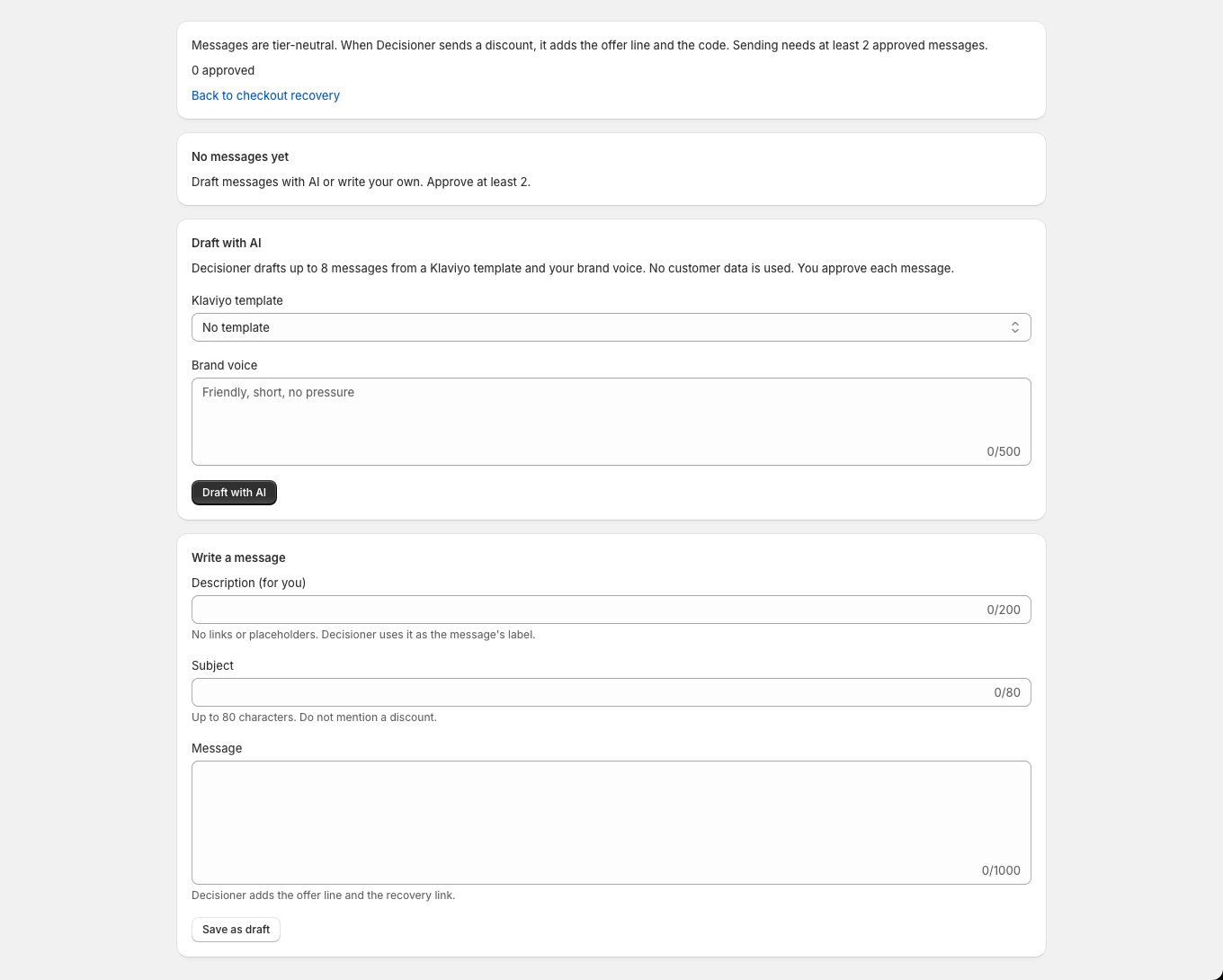
Recovery messages: none yet. With no messages yet, the merchant can draft messages with AI from a Klaviyo template and brand voice, or write their own.
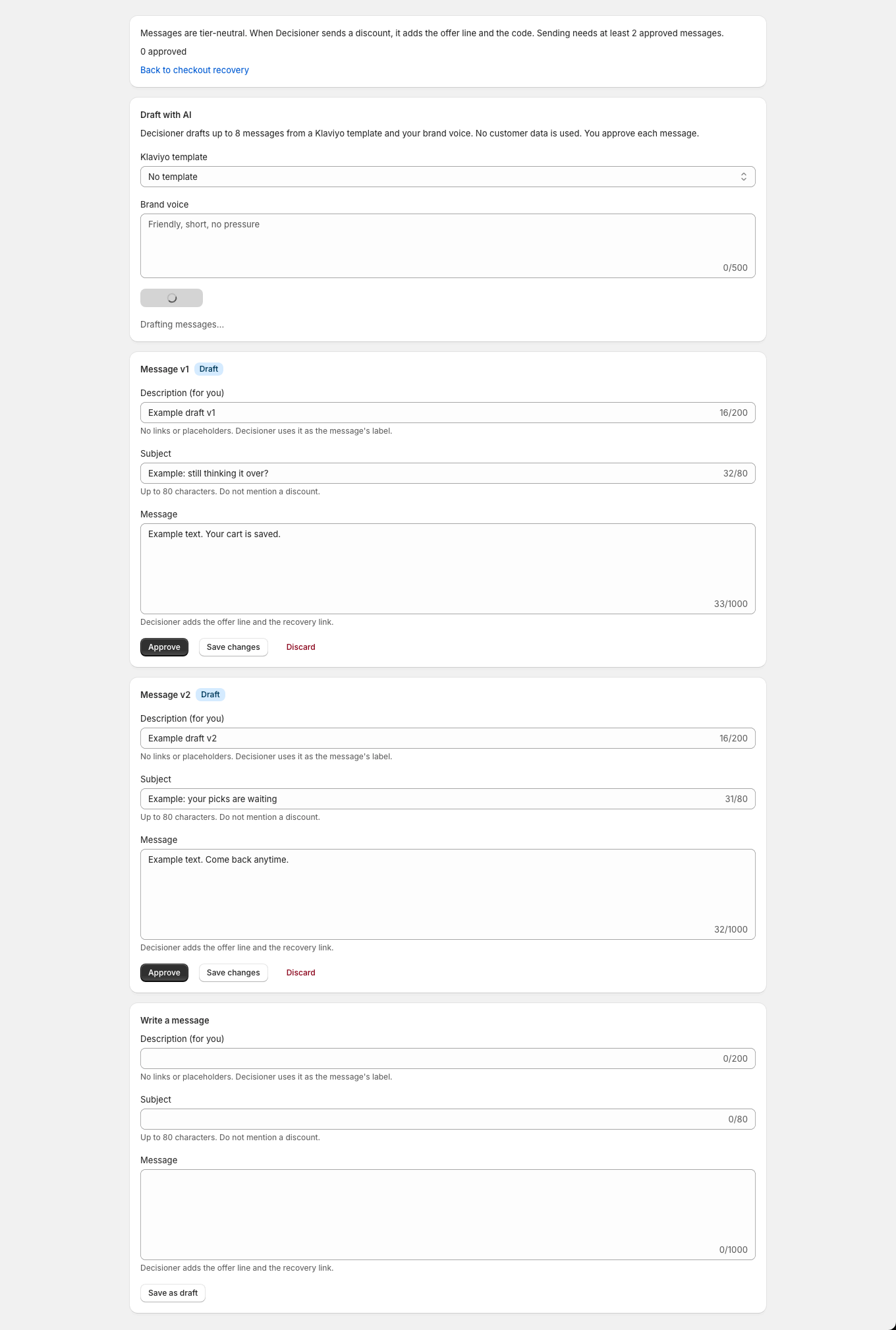
Recovery messages: drafting with AI. While AI drafting runs, a progress indicator shows and draft cards appear for review.
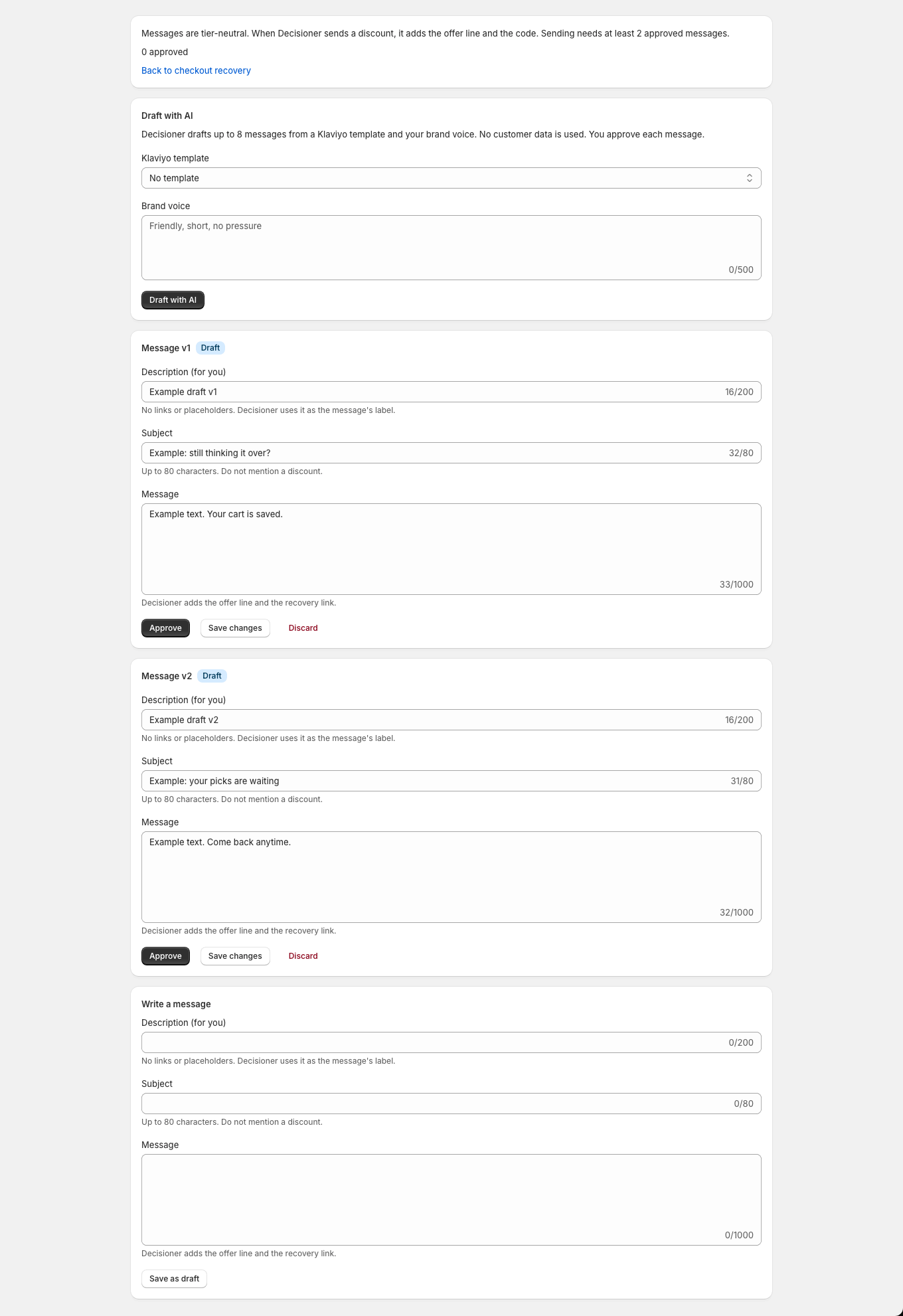
Recovery messages: drafts to review. AI drafts appear as editable cards that the merchant can approve, save or discard.
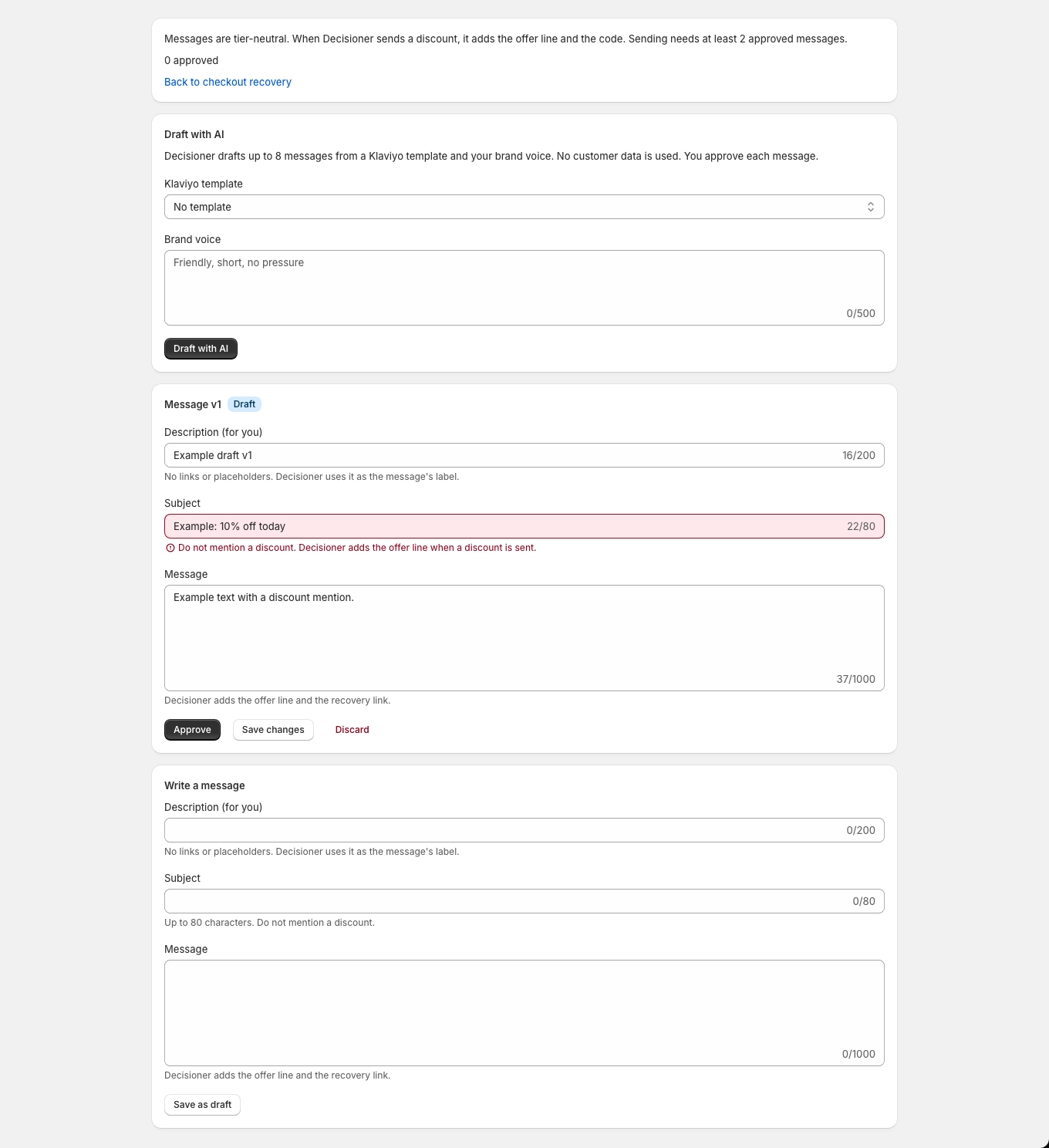
Recovery messages: draft needs a fix. A draft that breaks a rule shows an inline error that tells the merchant what to fix before approving it.
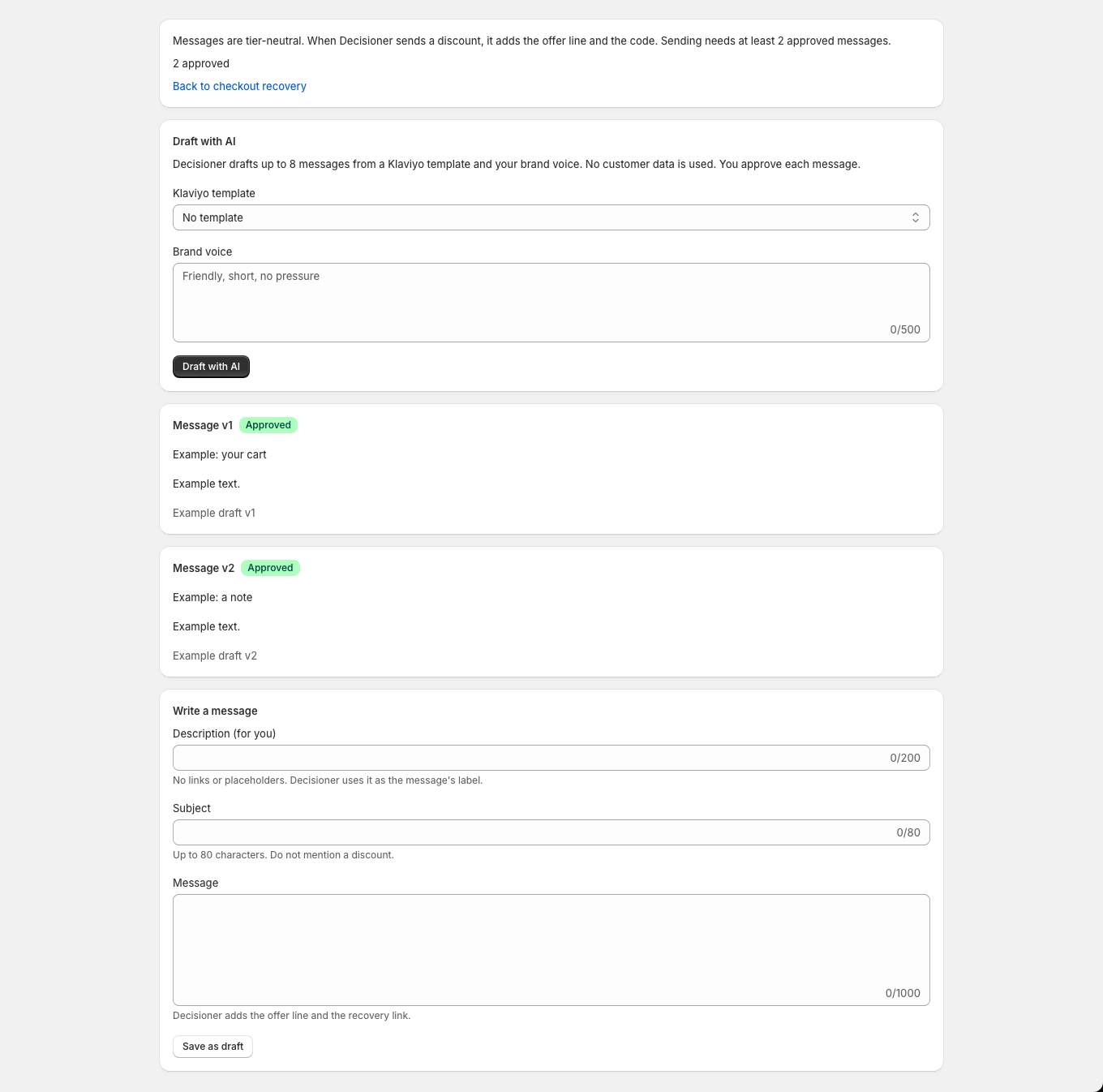
Recovery messages: approved. Approved messages are marked Approved and count toward the two messages that sending needs.
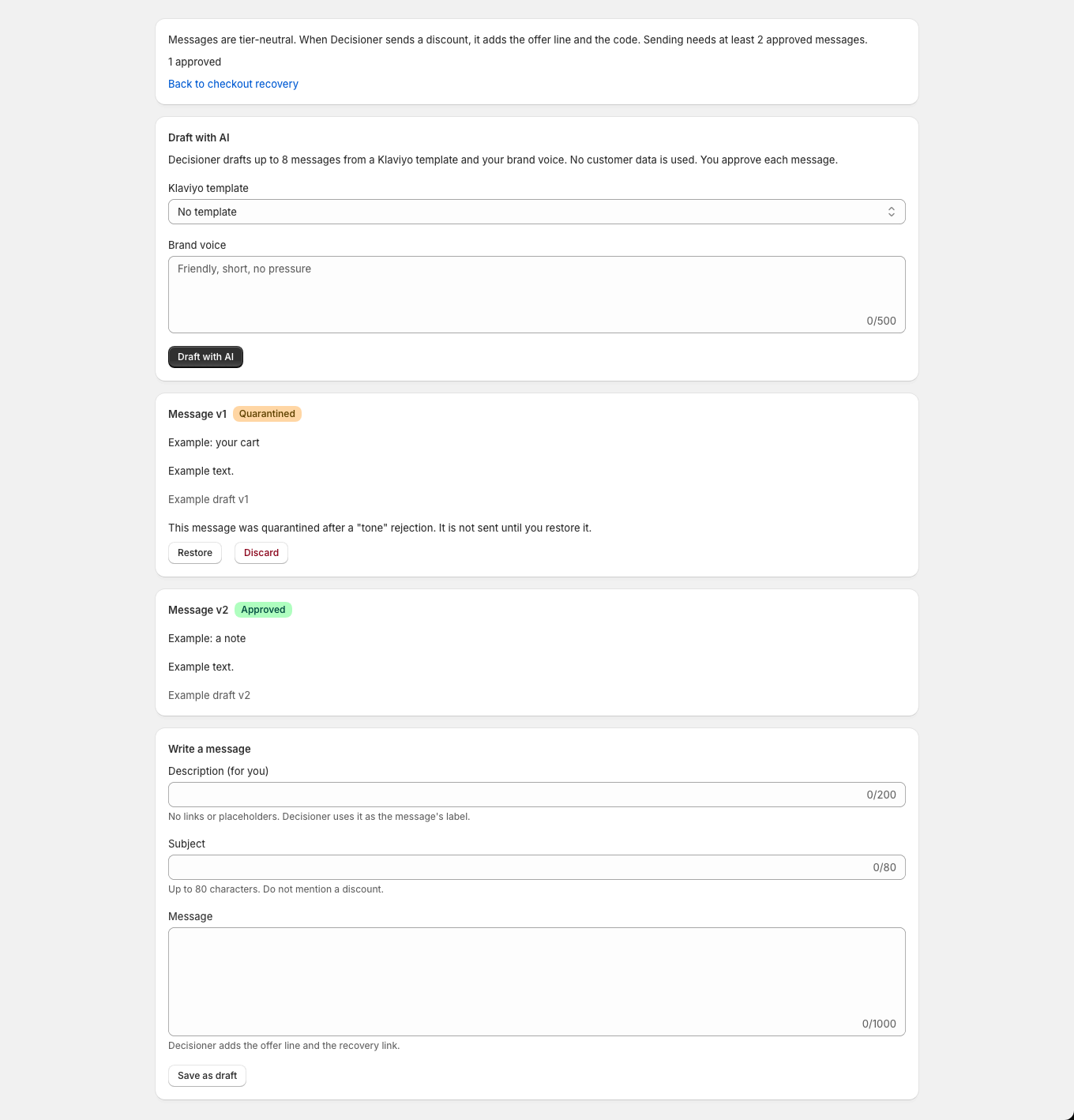
Recovery messages: quarantined message. A rejected message is quarantined and not used until the merchant restores it.
Decision log
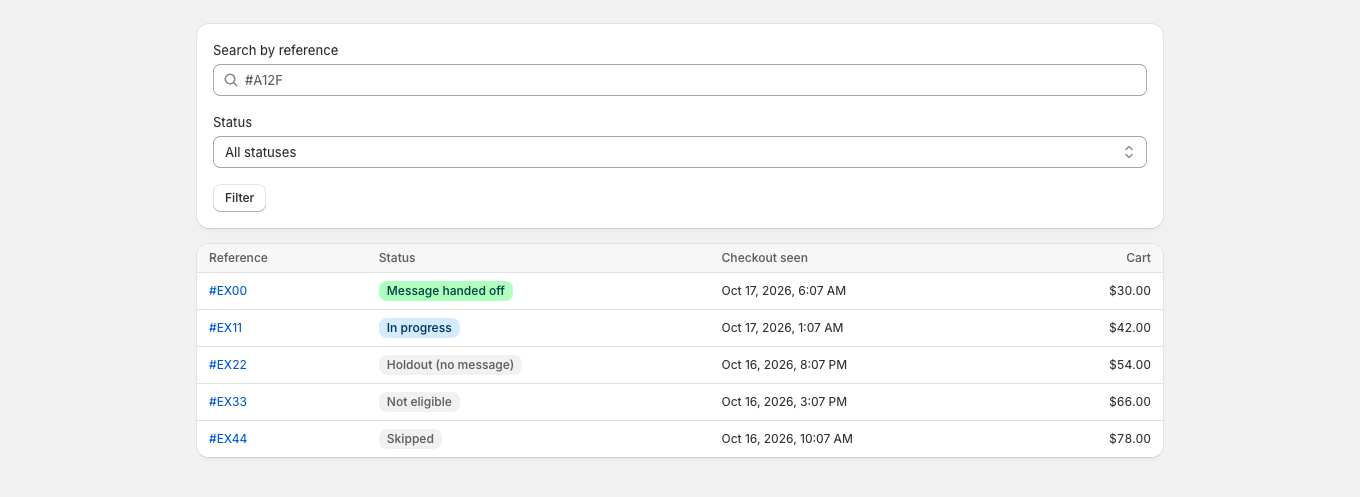
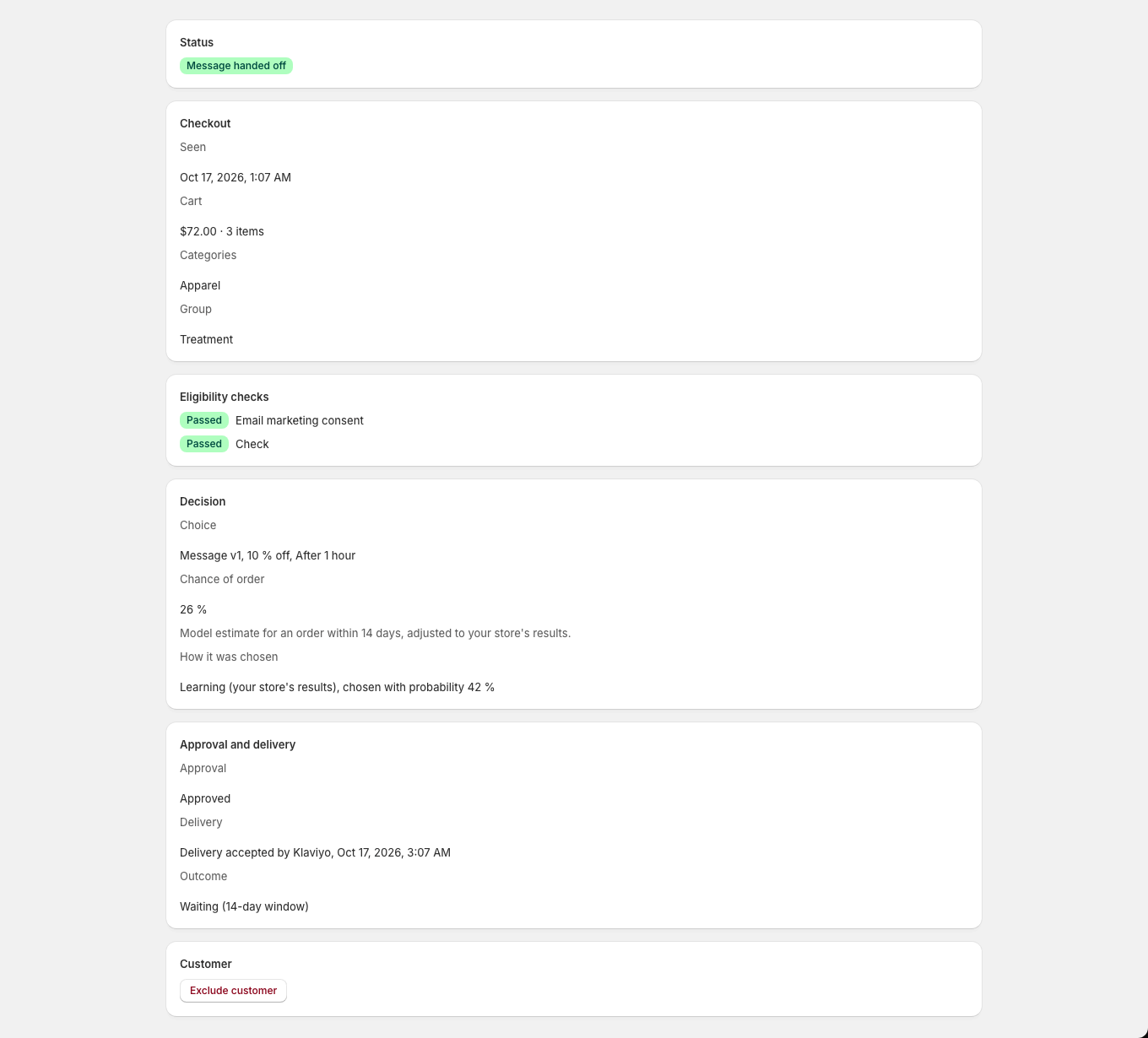
The decision log lists every abandoned checkout with its status. Open one to see the eligibility checks, what was chosen and why, the approval, the delivery and the outcome.
Decision log. The decision log lists every abandoned checkout with its status, time and cart value and can be searched and filtered.
Decision detail: message sent. A decision's detail shows the eligibility checks, the chosen message and discount, the chance of order, how it was chosen, approval, delivery and outcome.
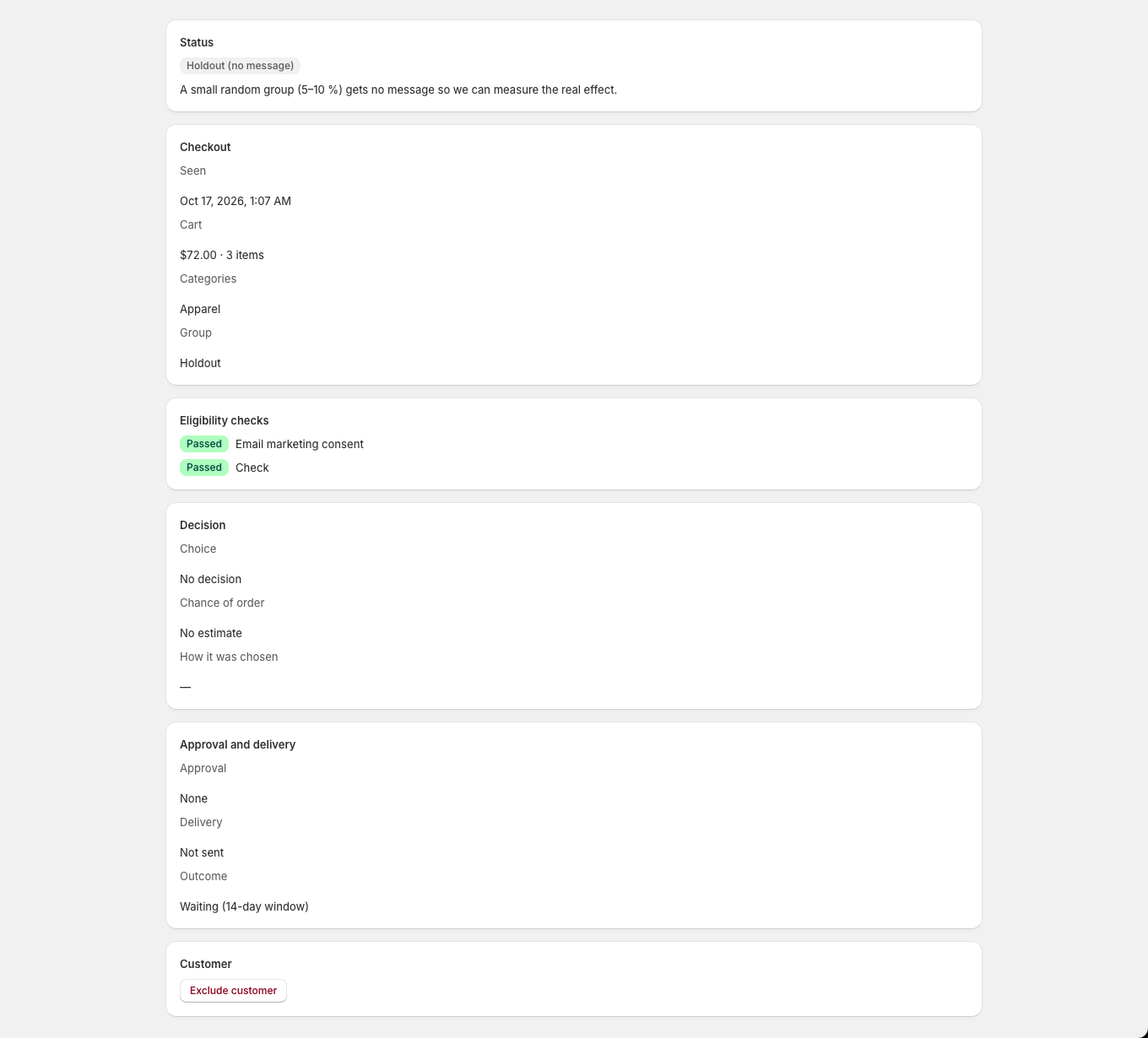
Decision detail: holdout group. A holdout decision explains that a small random group gets no message so the real effect can be measured.
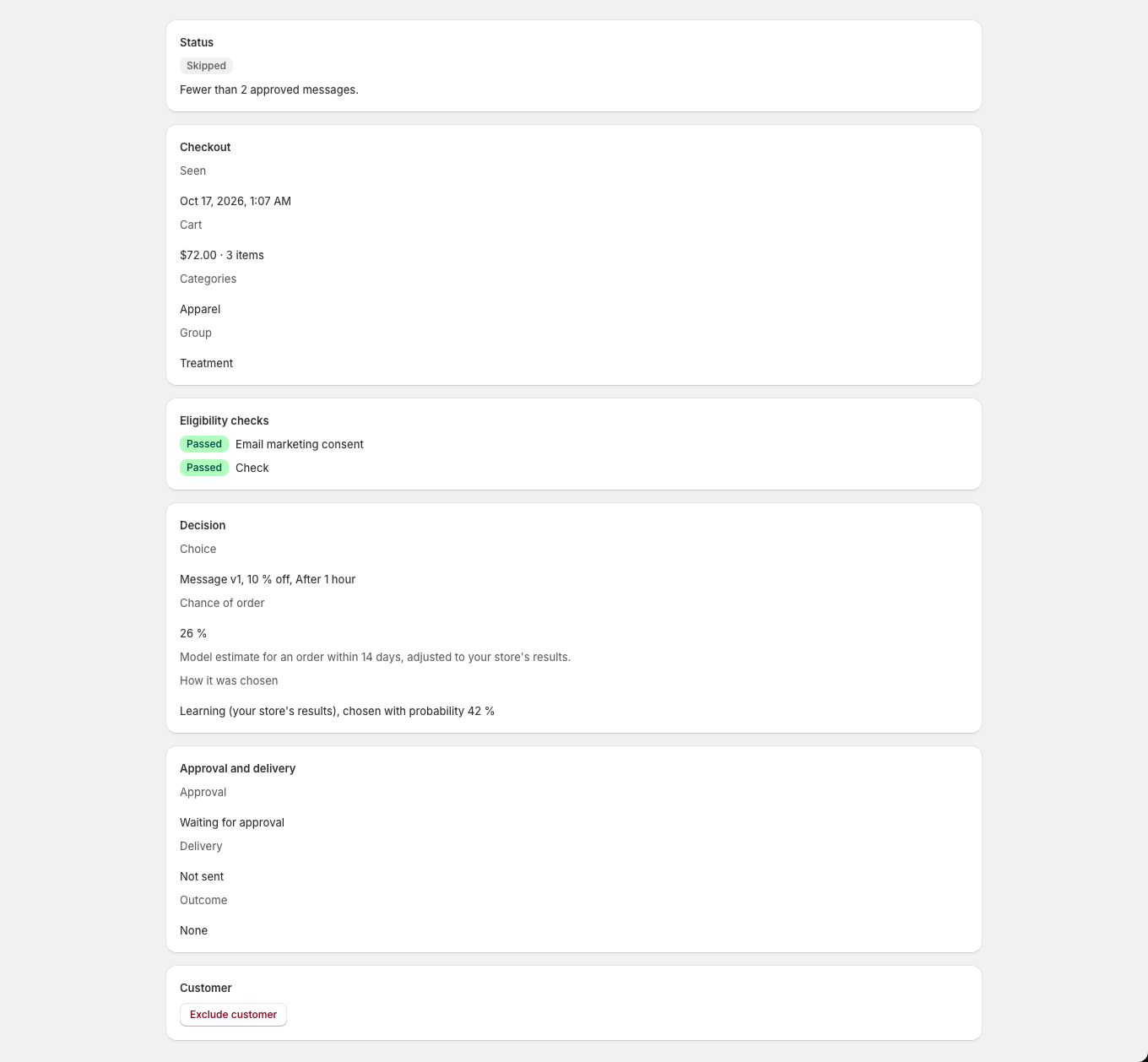
Decision detail: skipped. A skipped decision shows the reason it was skipped, here because fewer than two messages are approved.
Email deliveries
The Email page lists each message handed to Klaviyo or Flow and its delivery status.
Email deliveries. The email page lists each message handed off, its delivery status, where it was handed off and when.
Email: no sends yet. Before any email is handed off, the page explains when emails will appear.
Plans and limits
Every plan includes all features. Plans differ by how many customer events Decisioner decides on in a 30-day period, across every event kind. When you reach the limit, new customer events are skipped until the count resets; there are no extra charges.
Open Plans in the app menu.
Select Choose, Upgrade or Downgrade on a plan.
For a paid plan, approve the charge on Shopify's page. You return to Decisioner.
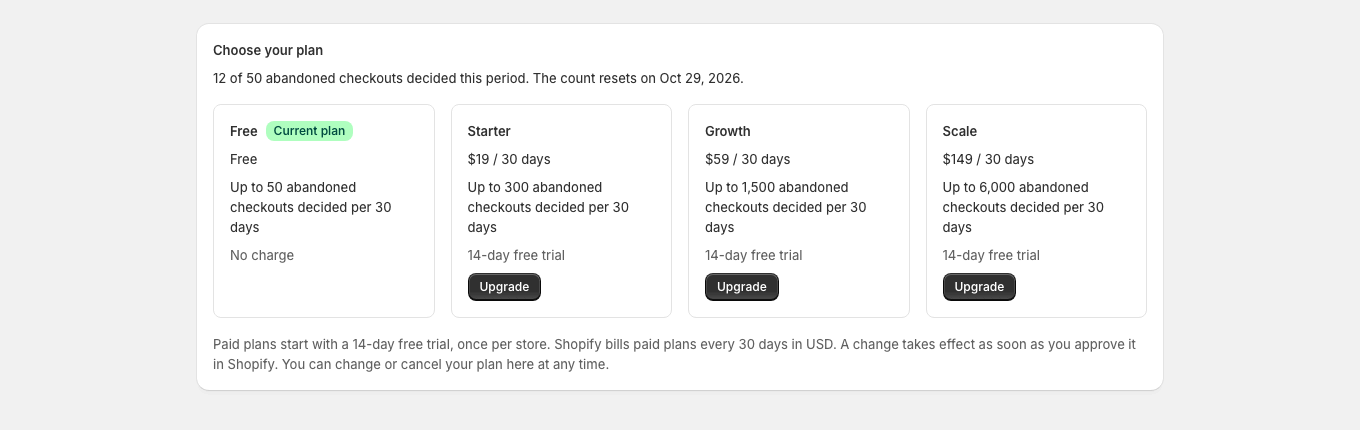
Plans: picker on the Free plan. The plan picker shows the four plans with their limits of customer events decided per 30 days, the trials, the current plan and this period's usage.
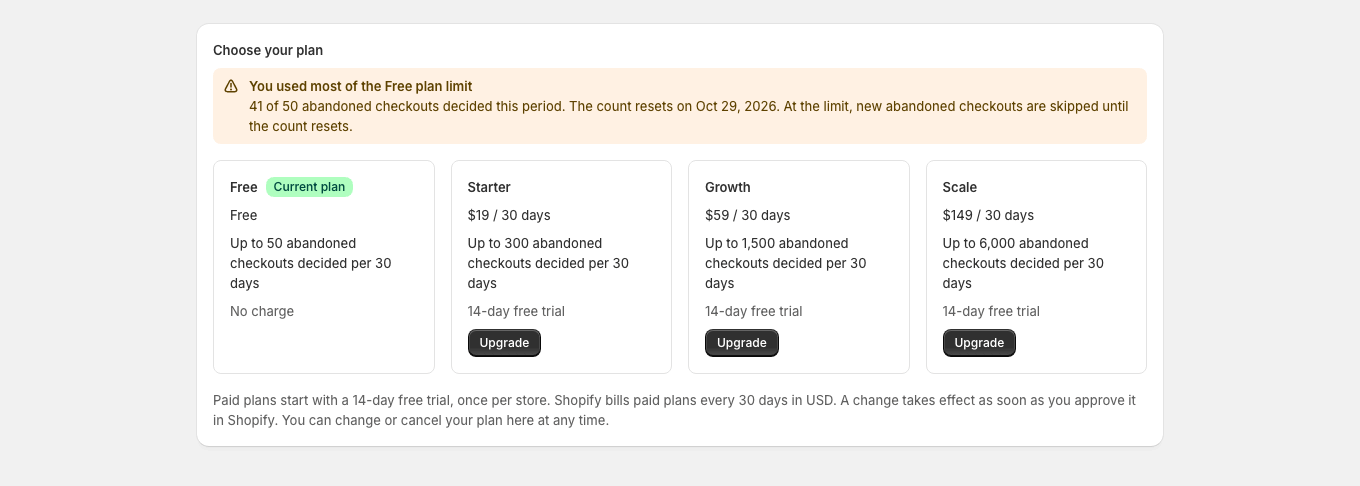
Plans: close to the limit. Near the plan limit, a warning shows how many customer events were decided and that new ones are skipped at the limit.
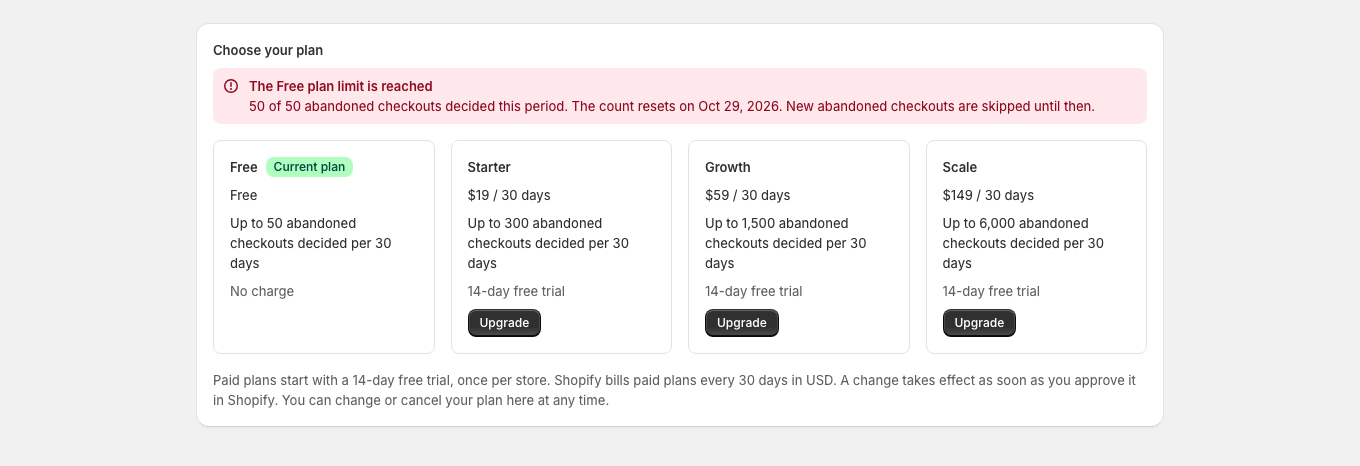
Plans: limit reached. At the plan limit, a critical banner says new customer events are skipped until the count resets, and the merchant can upgrade.
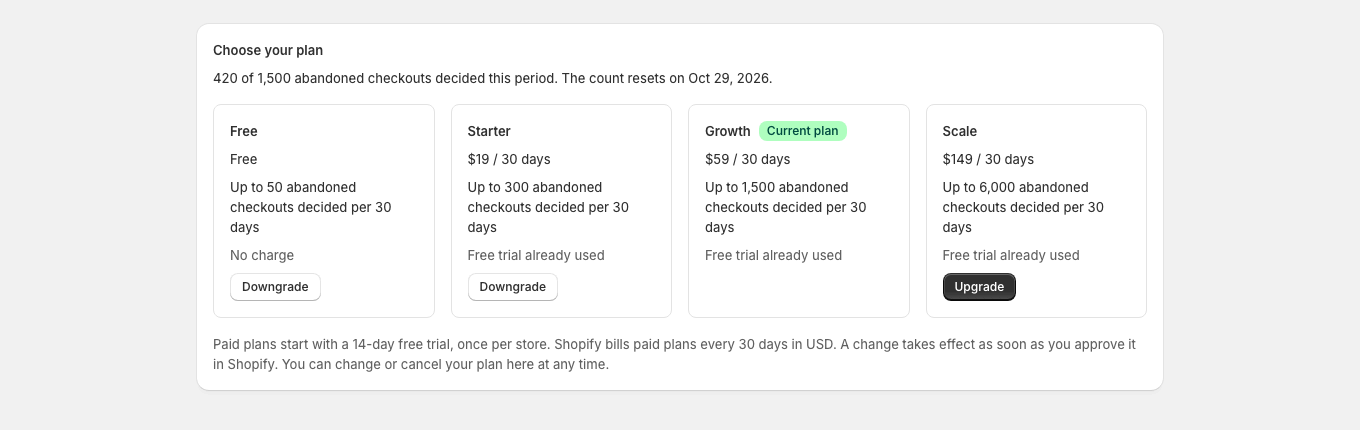
Plans: on a paid plan. On a paid plan, the picker marks the current plan, shows its usage and offers upgrade or downgrade buttons.
Checkout recovery: plan limit reached. When the plan limit is reached, the checkout recovery page shows a banner with an Upgrade link.
Settings
Settings groups the controls that apply to the whole store: emergency stop, quiet hours, frequency and volume caps, excluded product categories, learning, the Klaviyo key, the test email, your plan and customer data requests. Save the form with the save bar at the top.
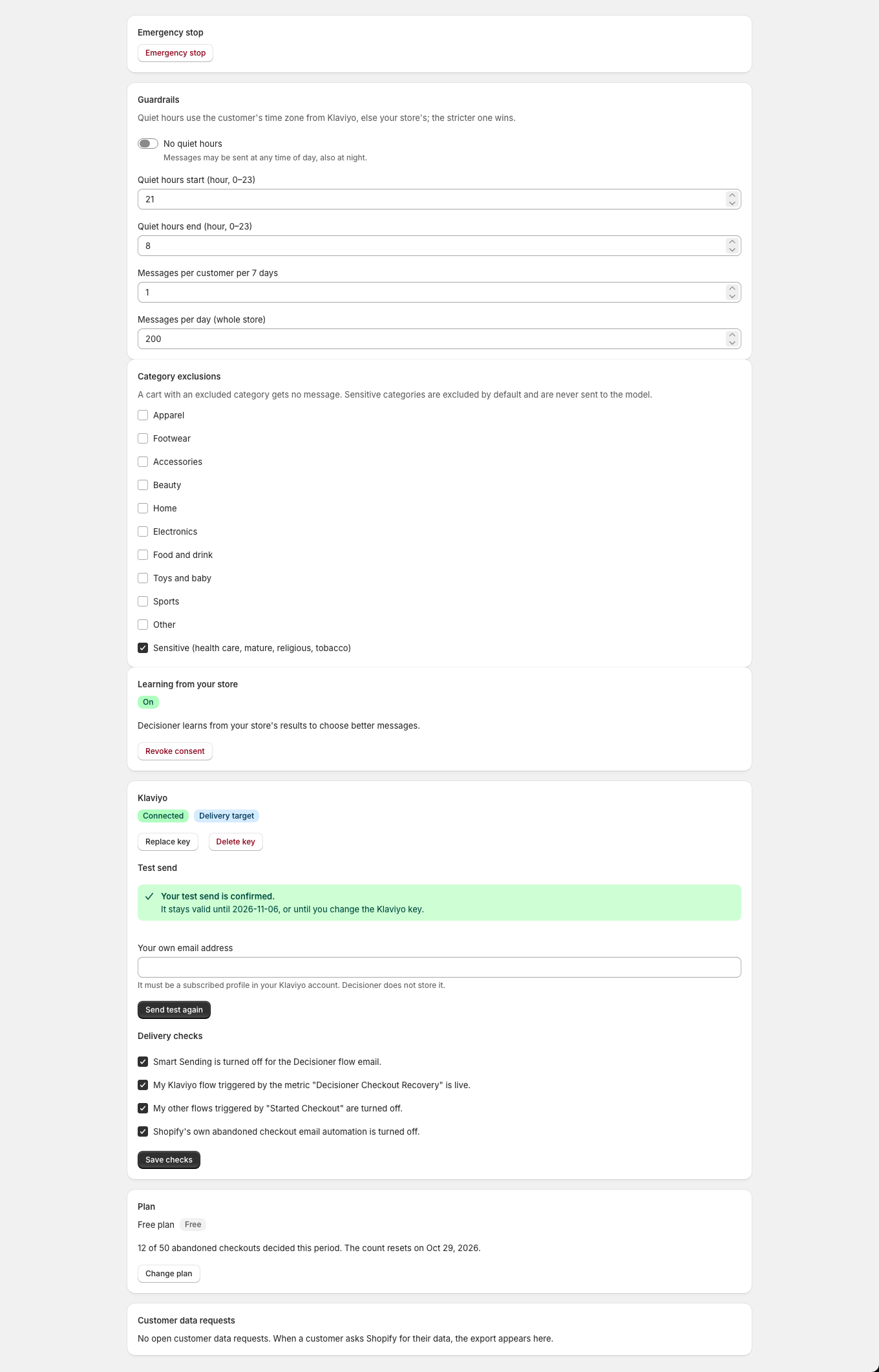
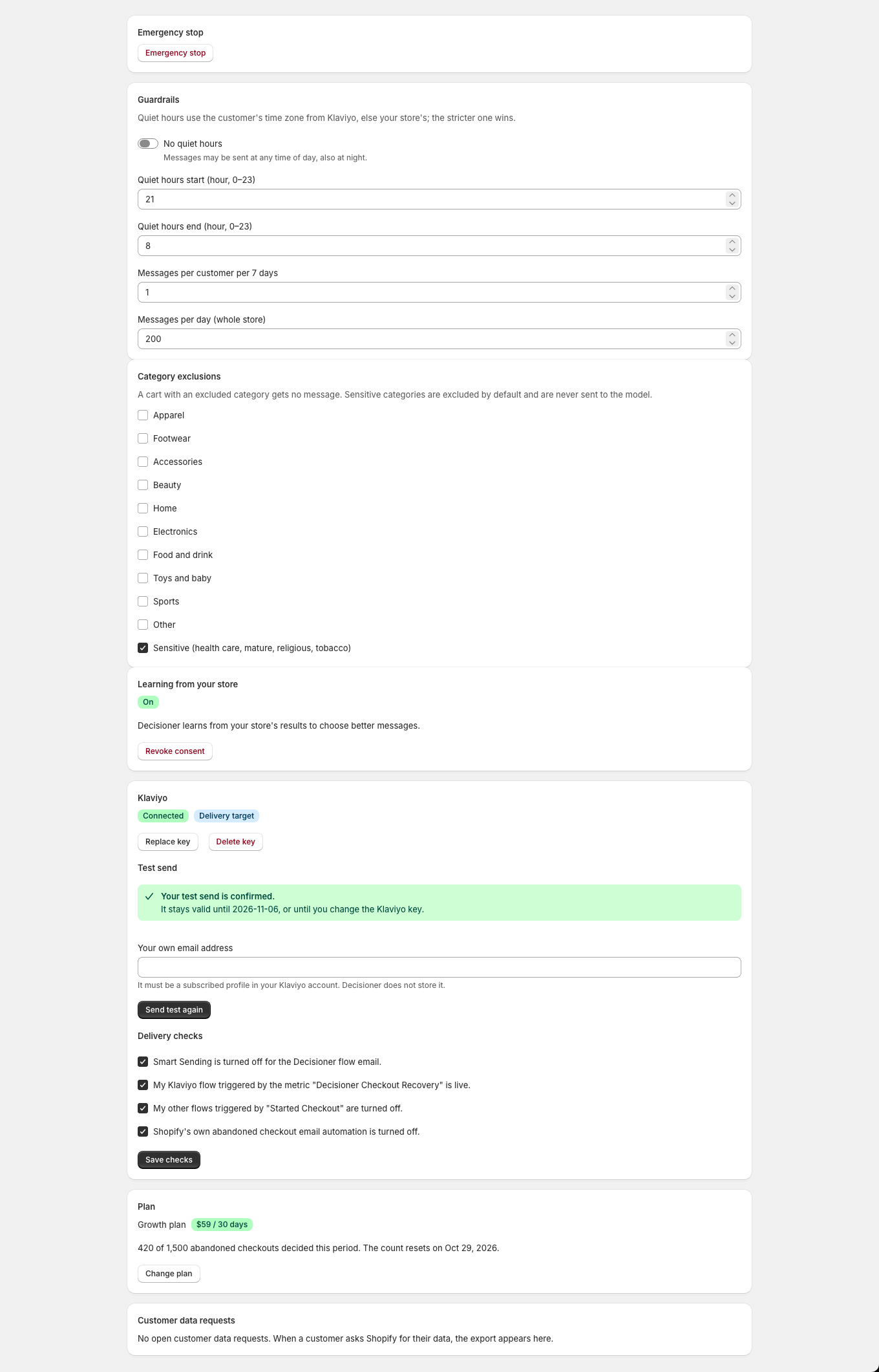
Settings. Settings group the emergency stop, quiet hours, frequency and volume caps, category exclusions, learning consent, Klaviyo key, test send, plan and customer data requests.
Settings: paid plan. On a paid plan, the Plan section in Settings shows the plan name, its price and usage, and a Change plan button.
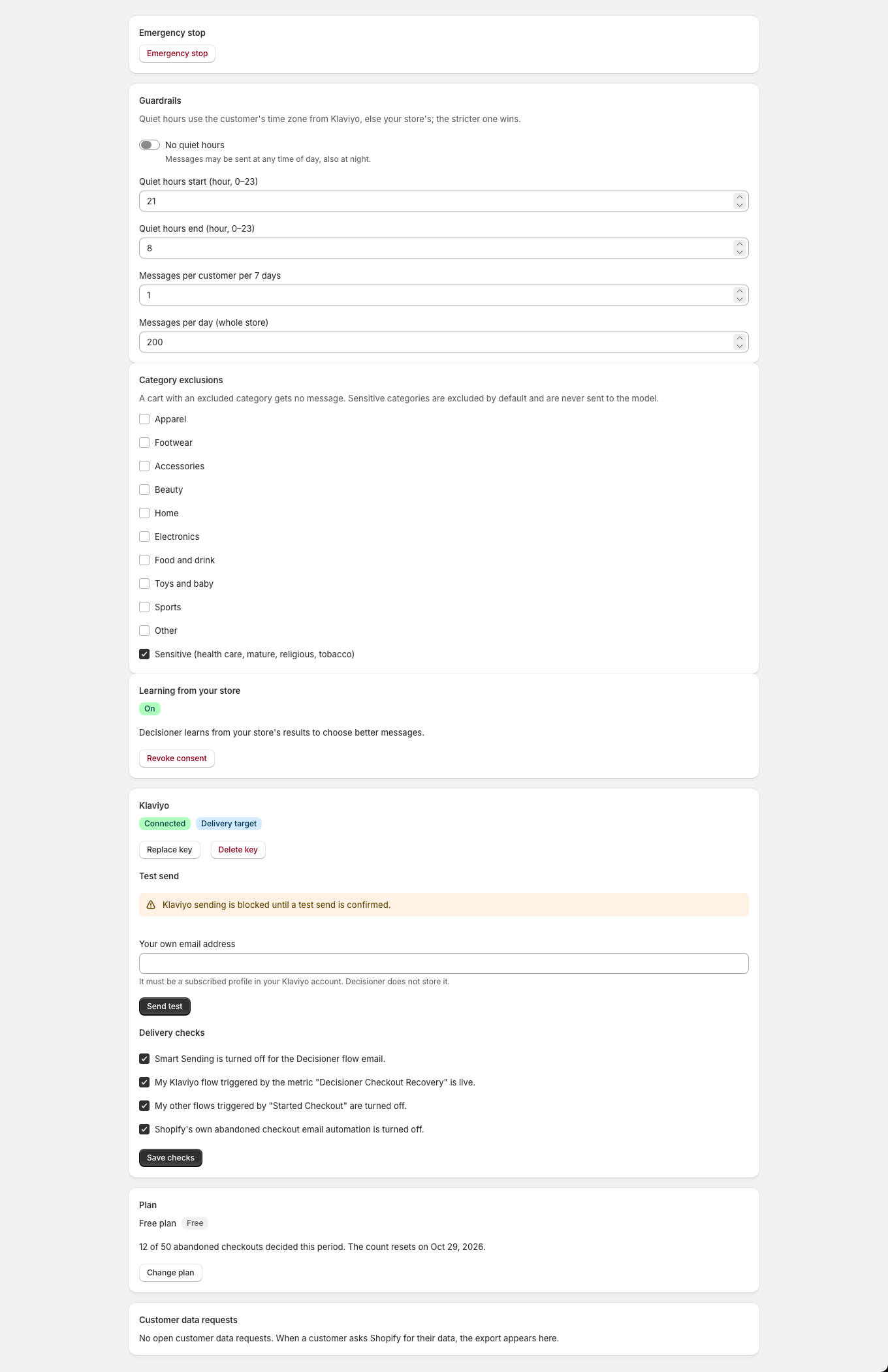
Settings: test email required. Settings warns that Klaviyo sending is blocked until a new test email is confirmed.
Customer data requests
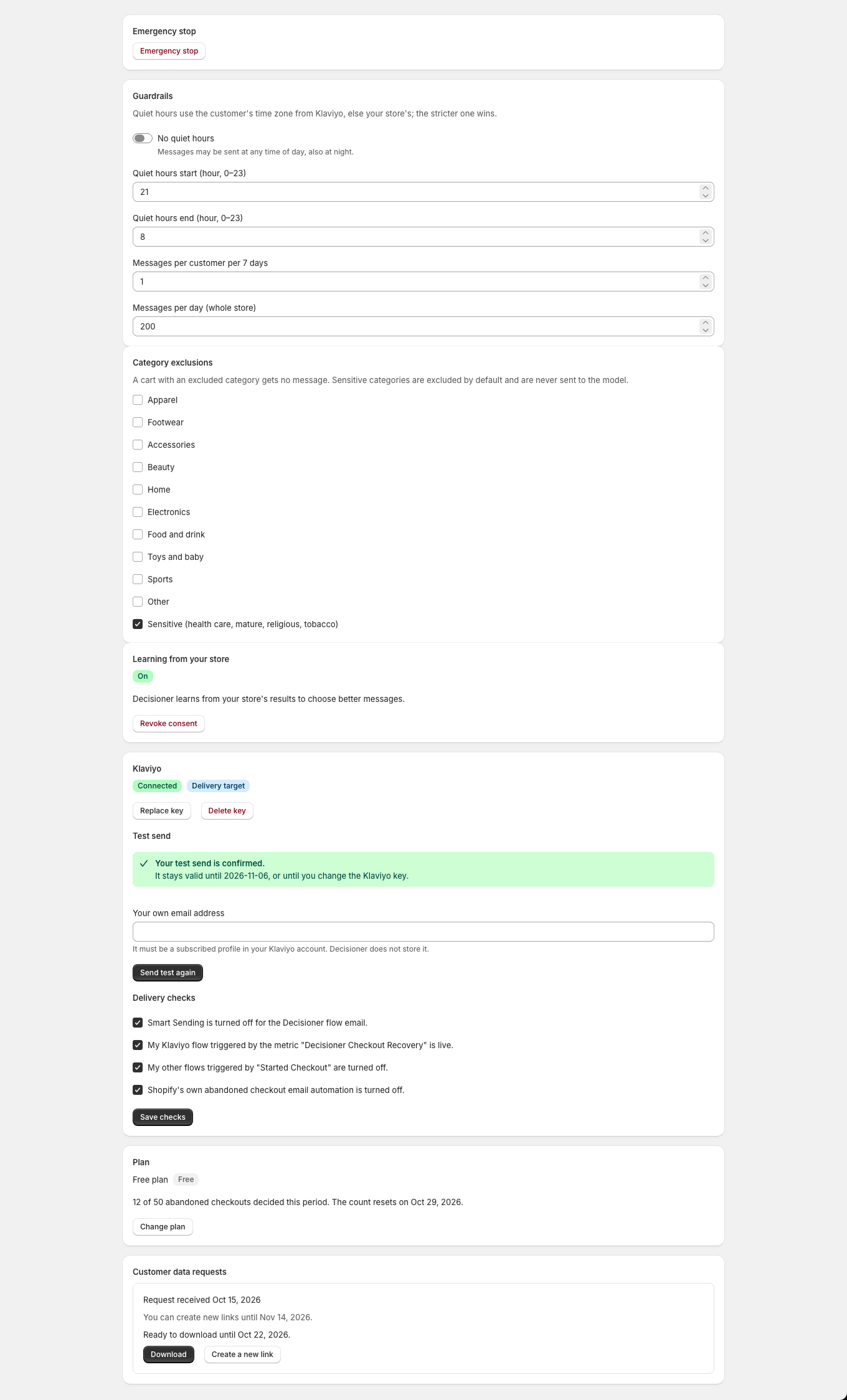
When a customer asks for their data through Shopify, Decisioner prepares an export. Settings shows a download link and lets you create a new one before the deadline.
Settings: customer data request ready. When a customer data request is ready, Settings offers a download and a way to create a new link before the deadline.
Emergency stop
The Emergency stop holds every queued message at once. Nothing is sent while sending is stopped.
Select Emergency stop on Home or in Settings, then confirm.
To restart, select Resume sending.
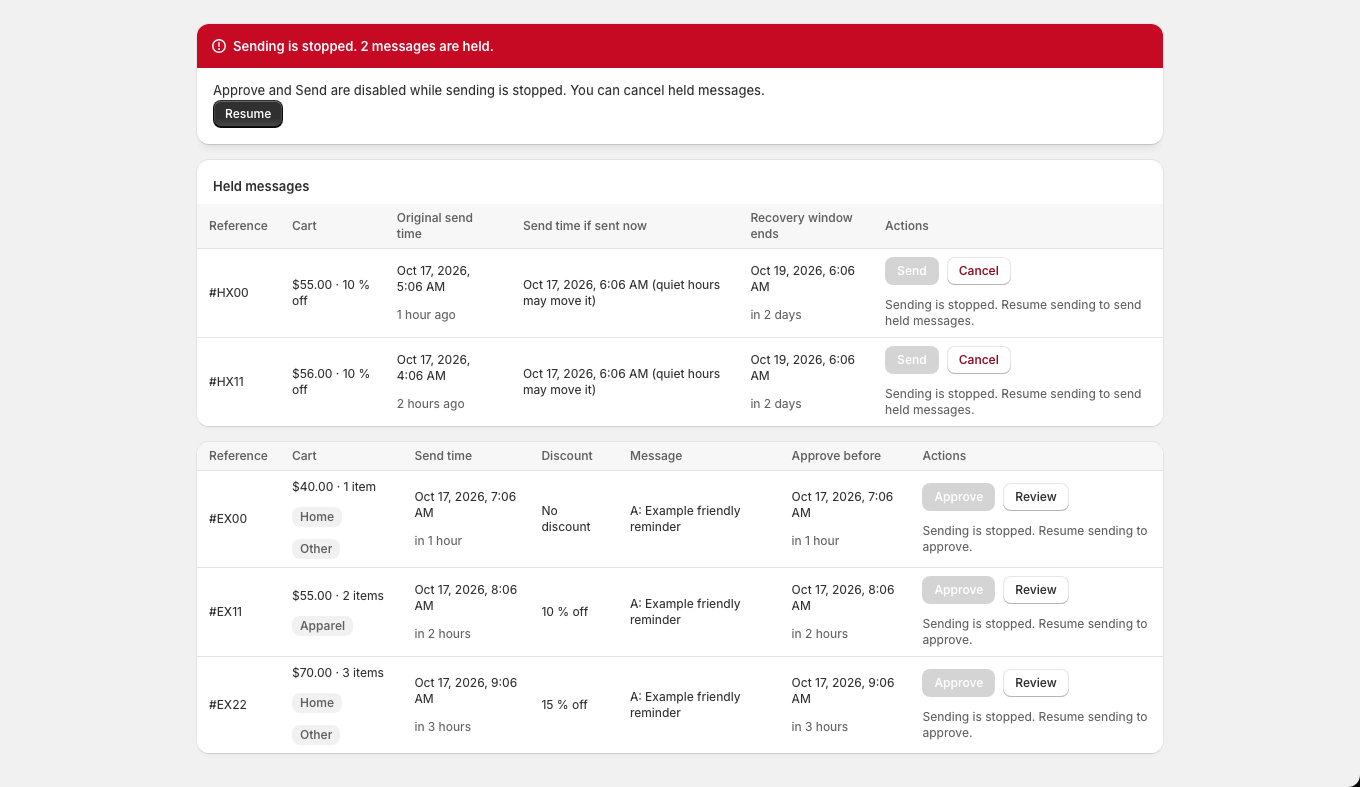
Held messages appear at the top of Approvals. Send or cancel each one before its recovery window ends.
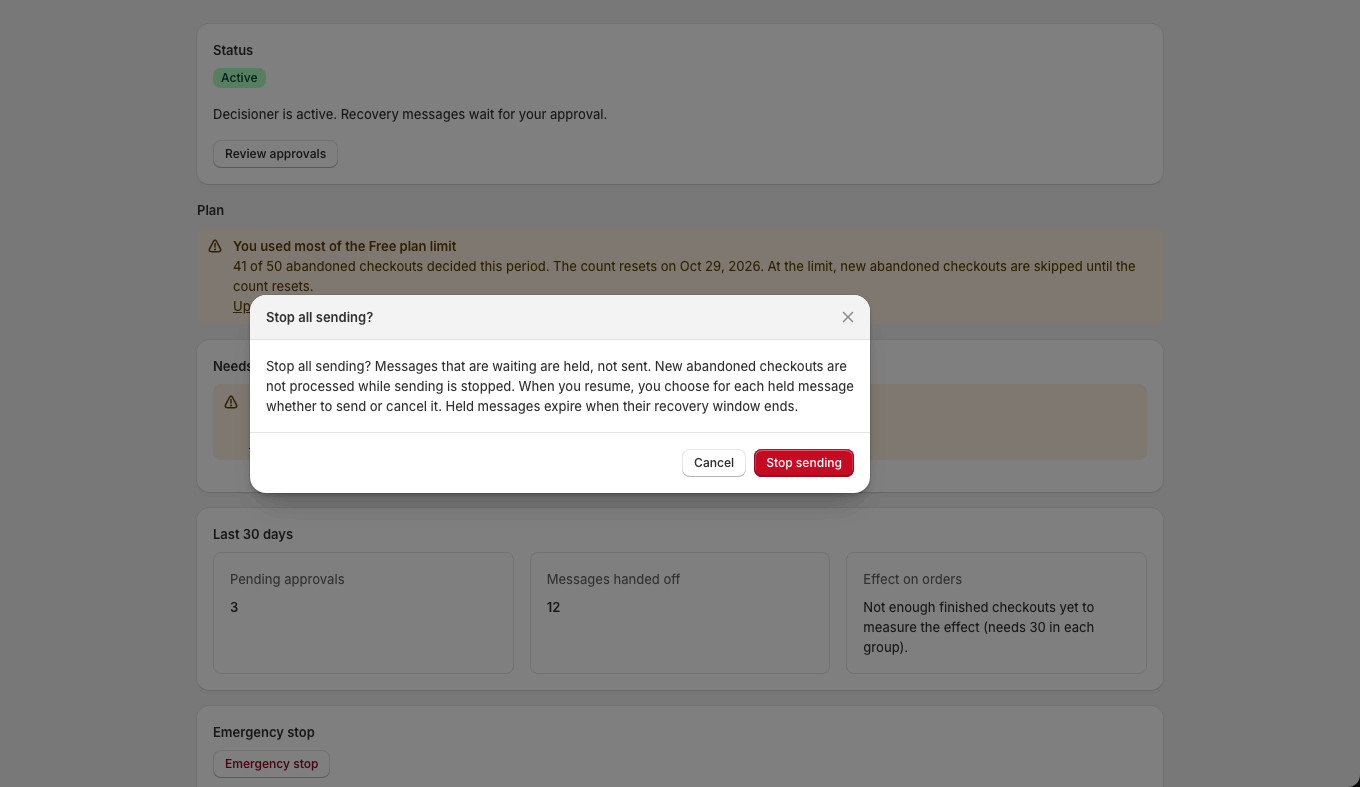
Emergency stop confirmation. Clicking Emergency stop opens a confirmation that explains waiting messages are held, not sent, until the merchant resumes and decides on each one.
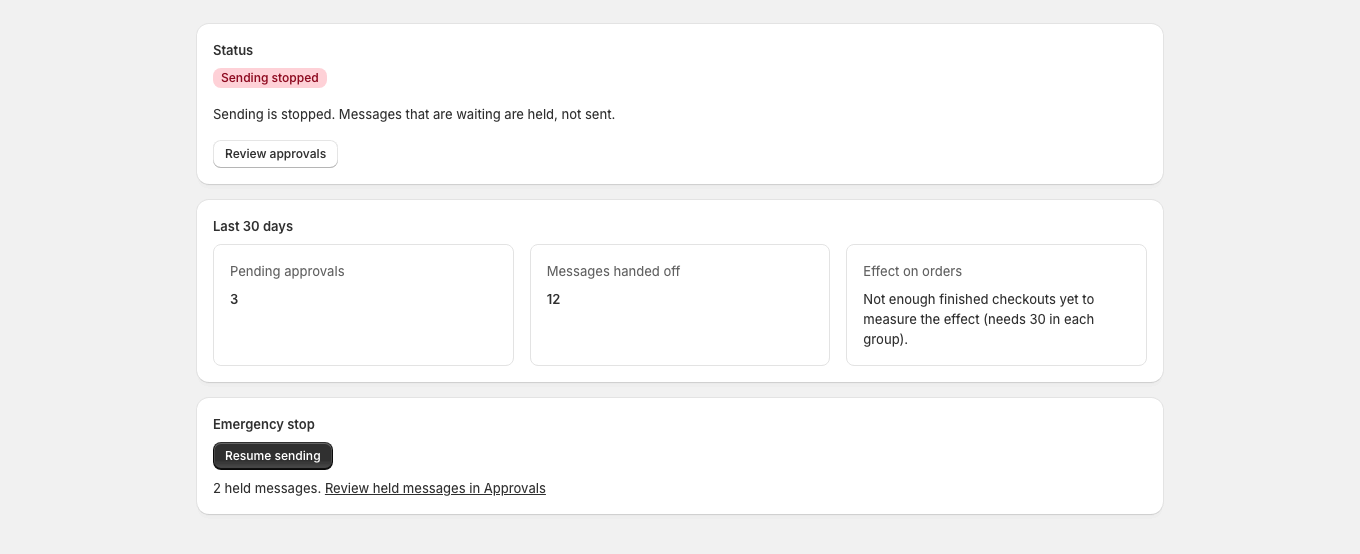
Home: sending stopped. While sending is stopped, Home shows a Sending stopped badge, the number of held messages and a Resume sending button.
Approvals: sending stopped. While sending is stopped, the queue explains that Approve and Send are disabled, still allows cancelling and offers a Resume button.
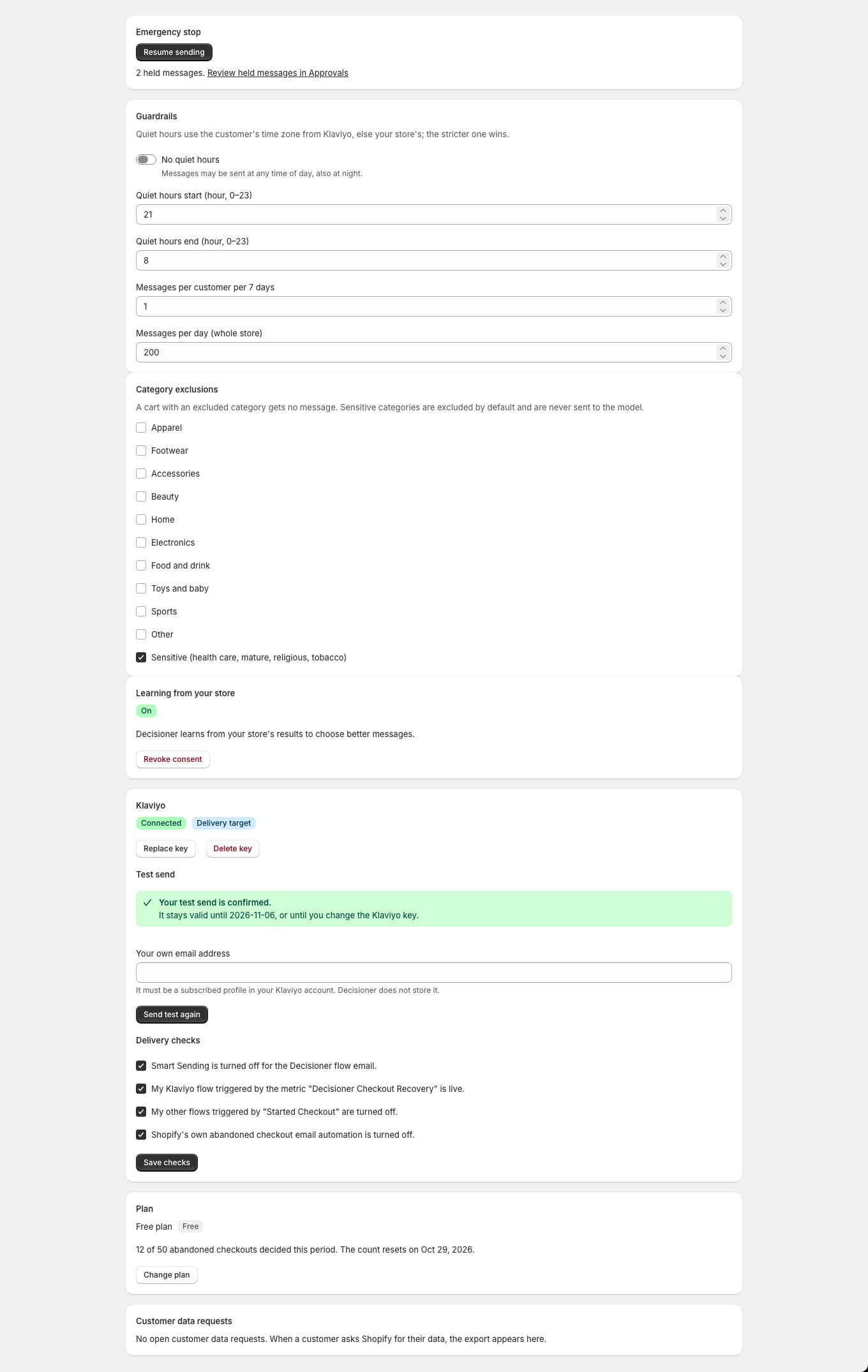
Settings: sending stopped. While sending is stopped, Settings shows the held message count, a link to review them and a Resume sending button.
On your phone
Decisioner works in the Shopify mobile app. Screens stack into one column.
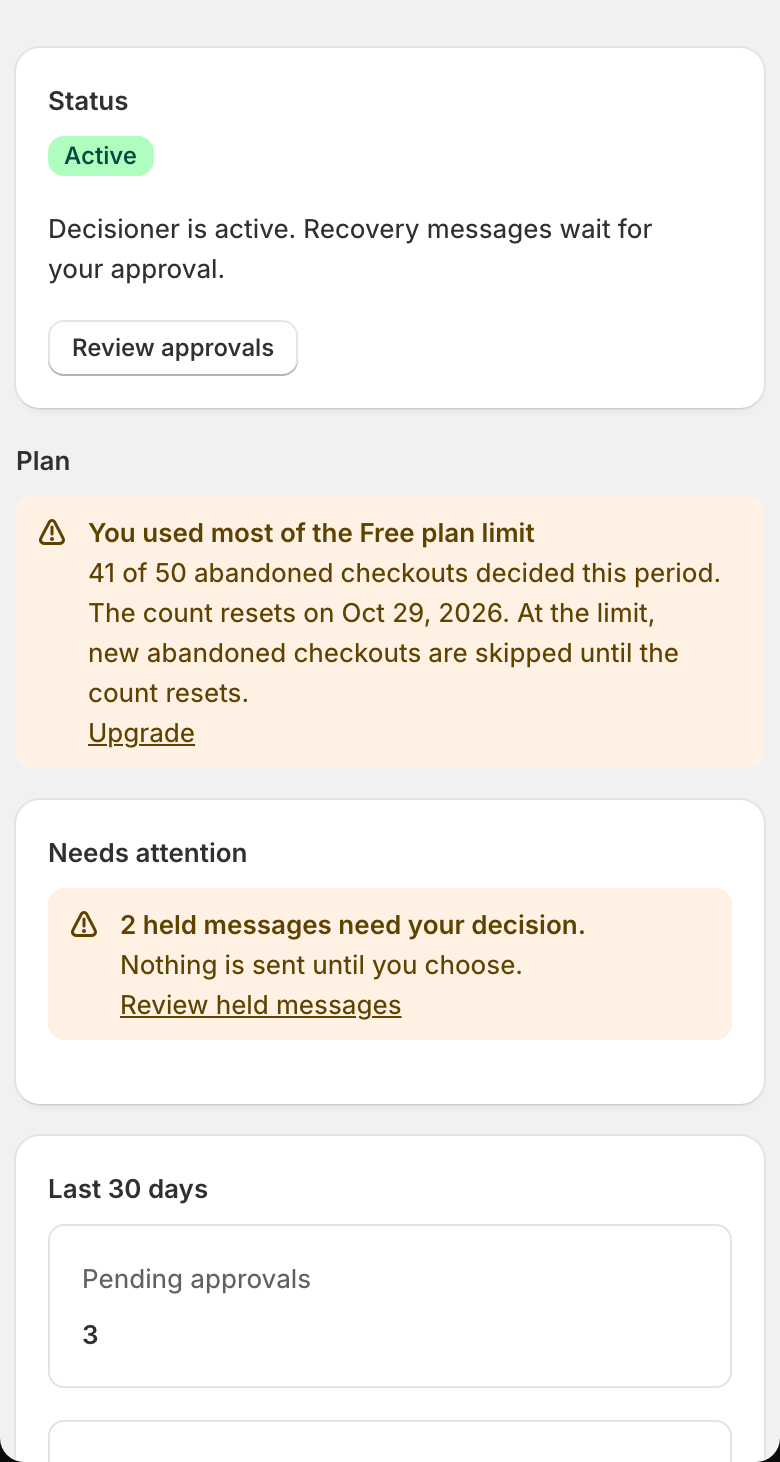
Home on mobile. On a phone, Home stacks the status, the plan and held-messages warnings and the 30-day numbers in one column.
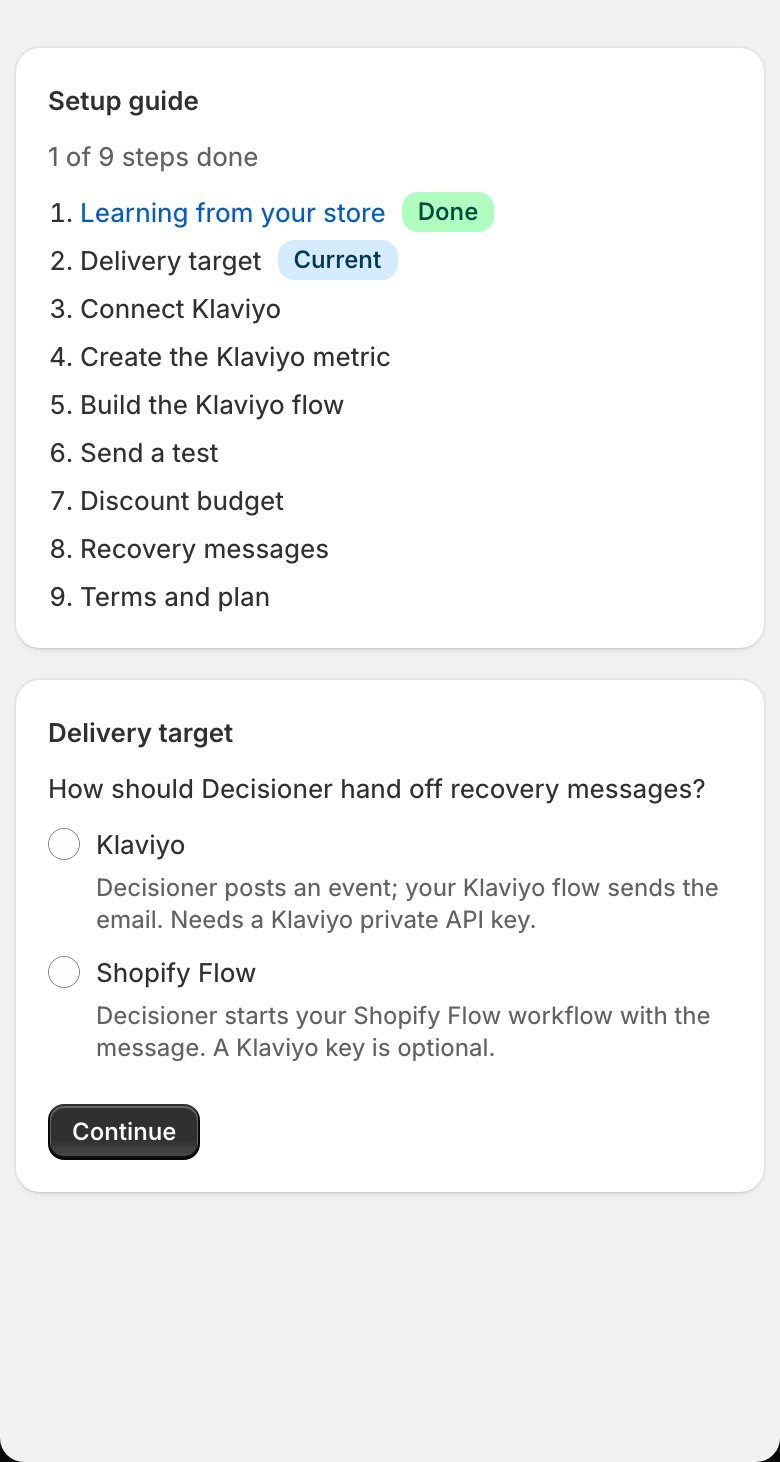
Setup on mobile. On a phone, the setup guide shows the step list and the delivery target choice in one column.
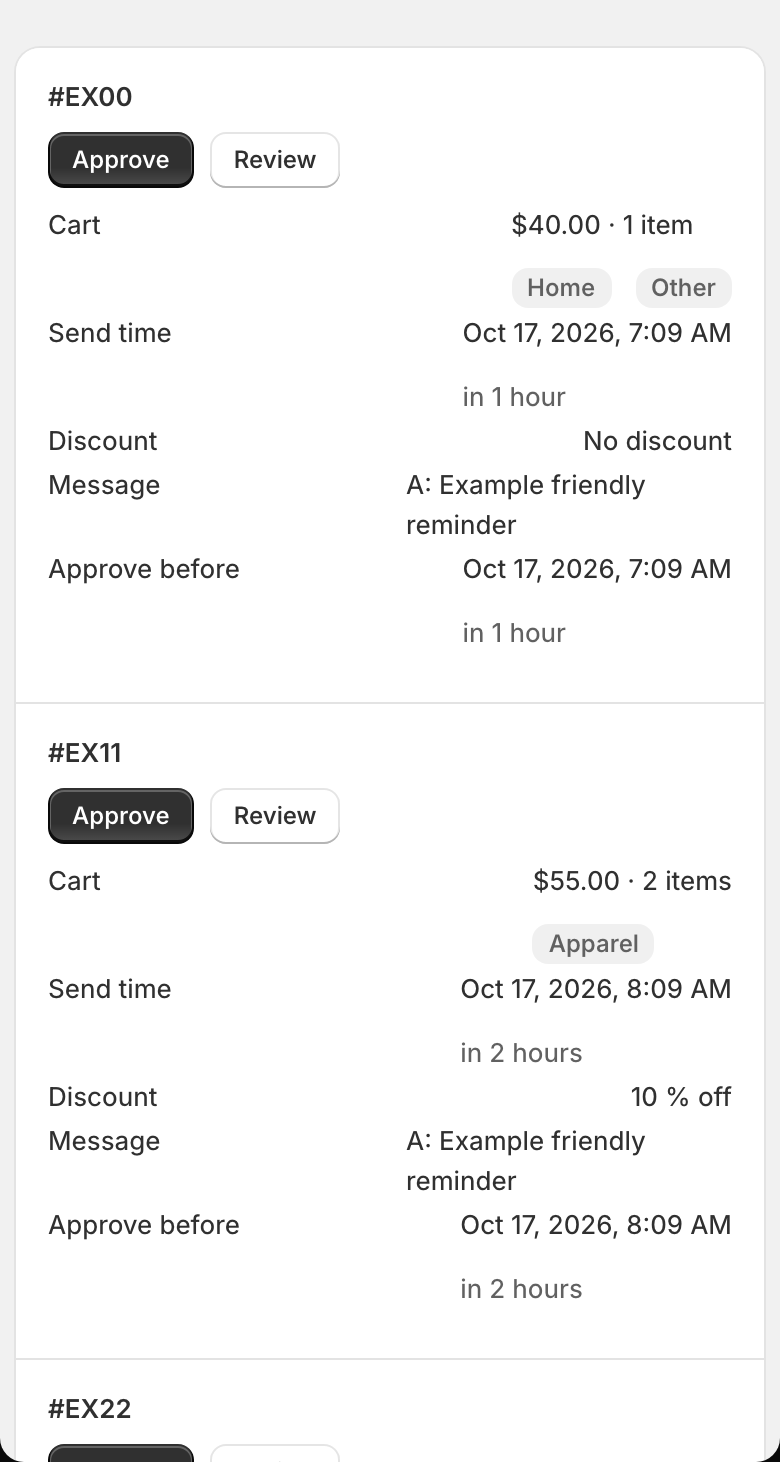
Approvals on mobile. On a phone, each waiting message becomes a card with its cart, send time, discount, message, deadline and the Approve and Review buttons.
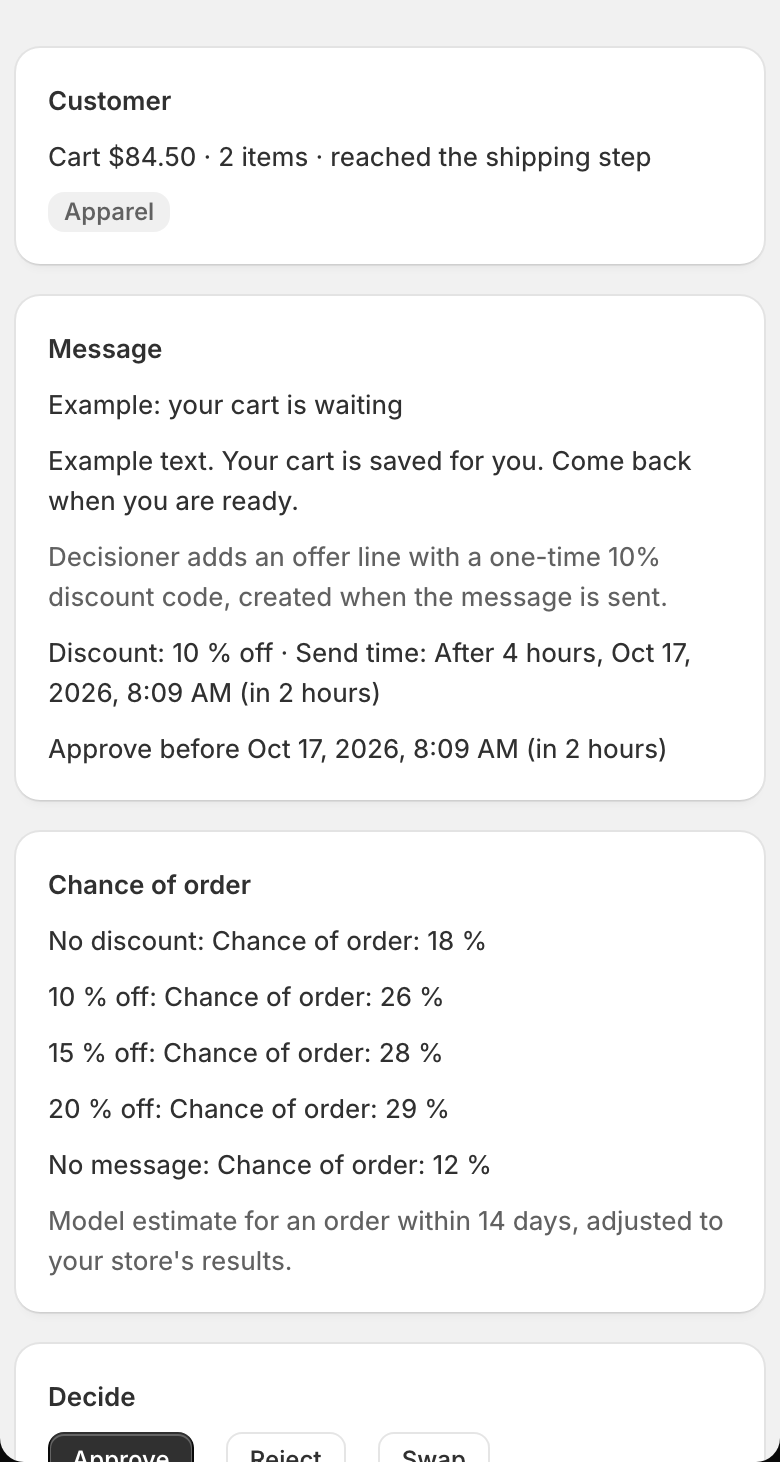
Approval detail on mobile. On a phone, the approval detail shows the cart, message and decision buttons in one column.
Privacy and data
Decisioner reads customer email consent and order history from your store. It does not read names, phone numbers or addresses.
The decision model receives anonymous numbers about the cart and order history. It never receives names, email addresses, customer IDs or your store name.
Messages go only to customers subscribed to email marketing in Shopify and, with Klaviyo, in Klaviyo too.
Your Klaviyo key is stored encrypted. When you uninstall, the key is deleted at once and all other data within 30 days.
Customer data requests and deletion requests from Shopify are handled automatically.